Audio Dubbing
Create an audio dubbing job from an audio or video source file.
Audio Dubbing is for turning an existing recording into a dubbed audio result. Use it when the source is an audio-first asset, such as a podcast clip, narration, interview, lesson, or extracted voice track.
Before you start
Use the cleanest source file you have. Dubbing depends on transcription first, so loud music, overlapping speakers, heavy room noise, or unclear speech can affect every step after upload.
Check Models before the first dub. Audio dubbing needs media tools, speech recognition, language translation when the target language is different, audio separation for some files, and the selected TTS model.
If the source has background music or noise, run Voice Isolator first and use the cleaner vocal file when possible.
Create an audio dub
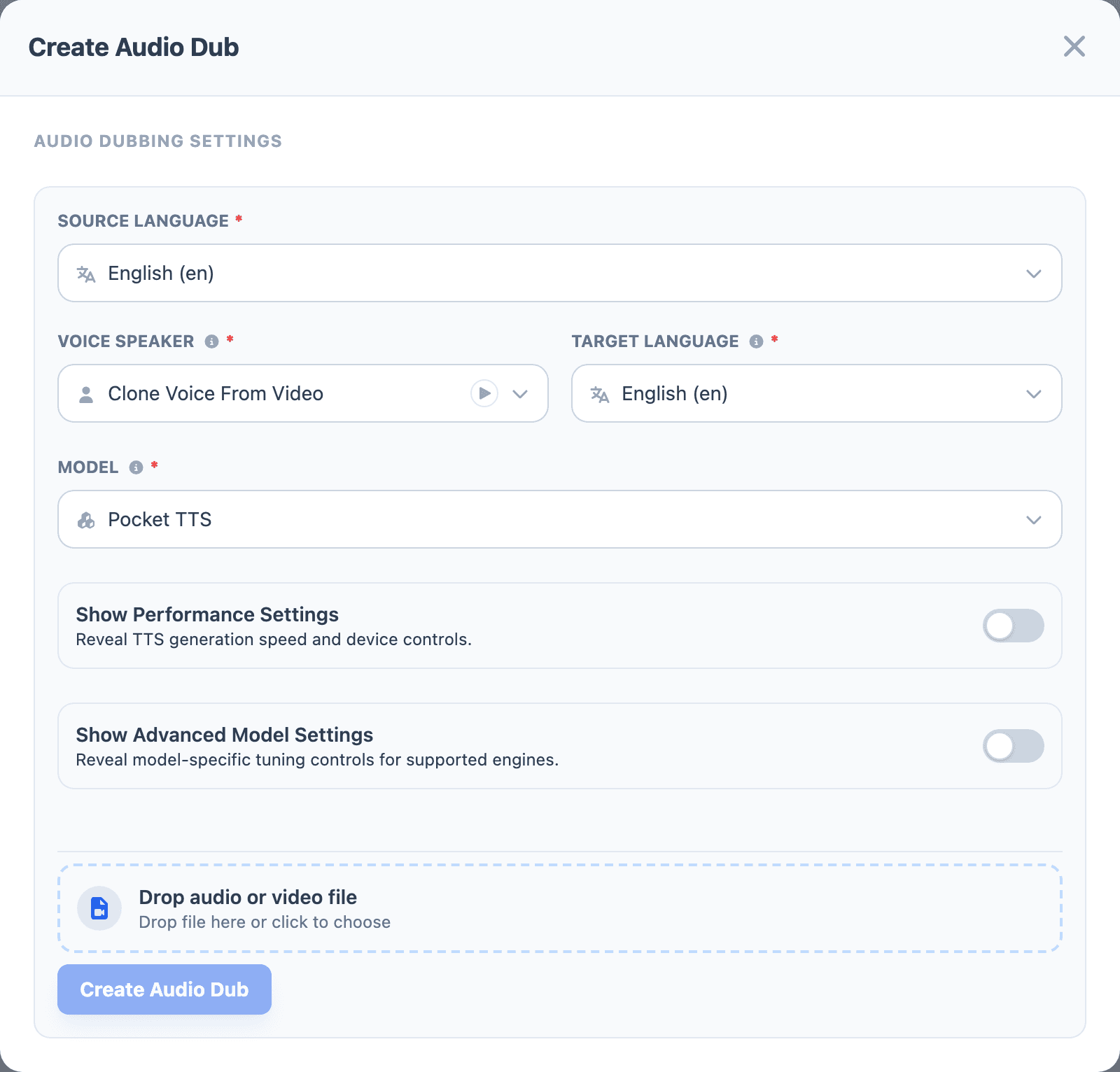
- Open Audio Dubbing from the sidebar.
- Select Create Audio Dub.
- Choose the Source Language for the original recording.
- Choose Voice Speaker. Use Clone Voice From Video when the job should derive the voice from the source, or choose an existing saved voice when the dub should use a specific speaker.
- Choose the Target Language.
- Choose the generation Model.
- Leave performance and advanced settings at their defaults for the first run.
- Drop the source file into the upload area, or use the file picker.
- Select Create Audio Dub.
Choose Clone Voice From Video when the dubbed audio should keep the source speaker's identity. Choose a saved voice when the output should sound like a different speaker, narrator, or brand voice.
The model settings in the dubbing modal use the same controls as Studio. See Studio before changing workers, device, batch size, or advanced model controls.
For the first job with a new voice or language pair, leave settings unchanged. After you hear the output, tune only the part that matches the problem: transcript edits for wrong words, model choice for language or voice quality, and advanced settings for delivery or repeated phrases.
Choose the voice strategy
Use Clone Voice From Video when the source speaker should remain recognizable in the final audio. This is useful for localization, interviews, lessons, and creator content where speaker identity matters.
Choose a saved voice when the final audio should use a narrator, host, actor, or brand voice from your library. This is usually better for training content, product explainers, and repurposed clips where consistency matters more than matching the original speaker.
Review and finish the job
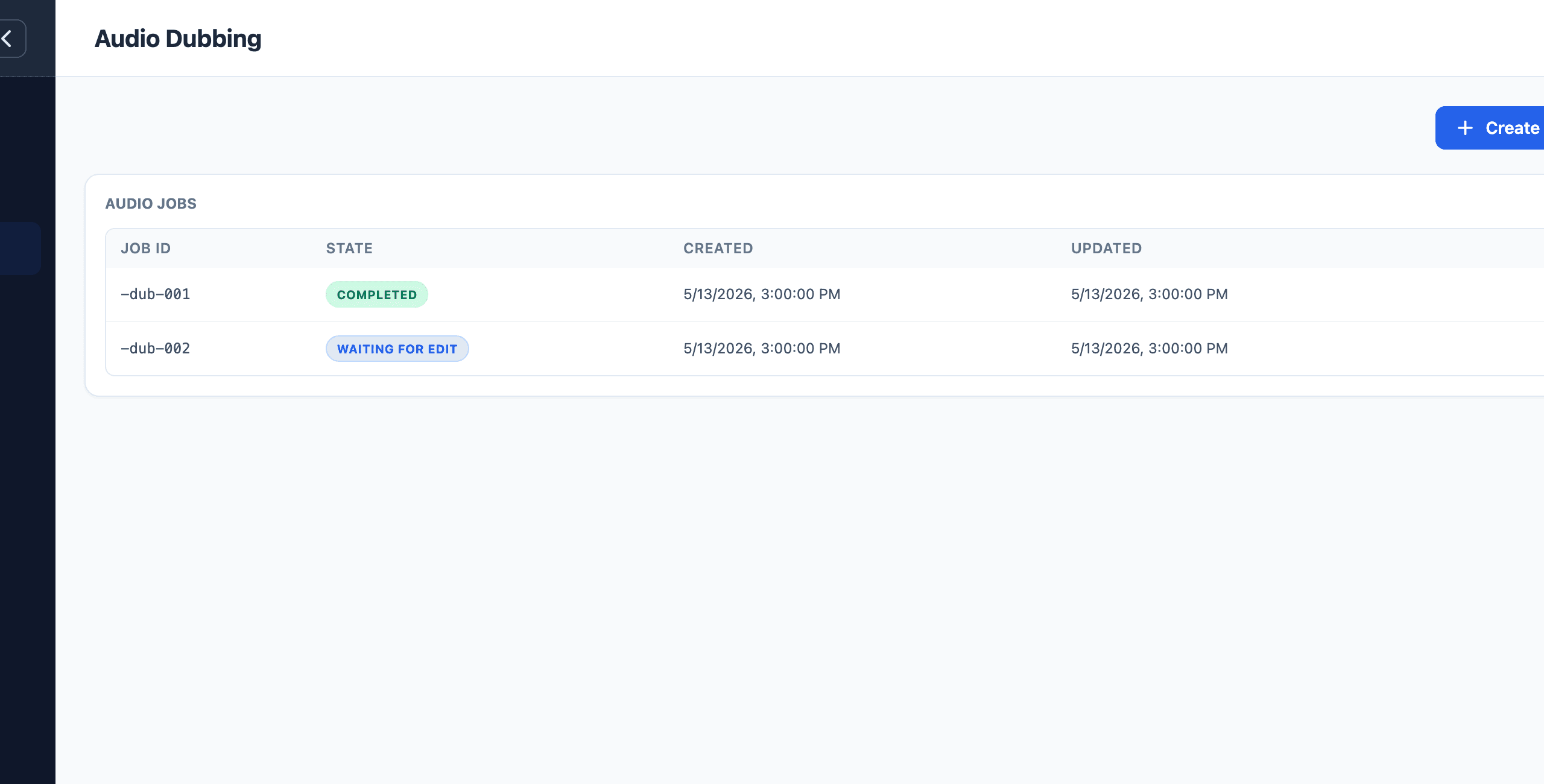
After the job starts, open it from the job list when it needs review. The workflow prepares the transcript first, then moves into the render step.
- Review the prepared transcript.
- Edit text where the source was recognized incorrectly.
- Save the transcript changes.
- Continue to render the dub.
- Preview the rendered result before using it in another workflow.
Transcript review is the most important quality step. If the transcript has wrong words, the dub will usually repeat those mistakes in the target language or final voice track.
Listen to names, technical terms, numbers, and brand words carefully. These are the most common places where a transcript needs manual correction before rendering.
Quality checklist
Before using the final dub, check:
- The transcript text is correct.
- Source and target languages are correct.
- Names, numbers, product terms, and acronyms are spelled correctly.
- The selected voice matches the goal of the dub.
- The rendered audio is not clipped, too quiet, or missing lines.
If the dub uses the right words but the performance is wrong, return to the model, voice, emotion, or advanced generation settings. If the words are wrong, fix the transcript first.
When to use this flow
Use Audio Dubbing when the final deliverable is audio, or when you want to prepare a translated voice track before combining it with video elsewhere.
If the deliverable is a complete video, use Video Dubbing instead so the render stays attached to the video dubbing job.
If the job cannot start
Open Models and check the required dubbing tools first. Audio dubbing depends on local speech recognition, audio separation, language translation, and the selected TTS model.
If the job starts but sounds wrong, check three things in order: the transcript text, the selected target language, and the chosen voice speaker.