Settings
Manage storage, local API access, licensing, and updates.
Settings contains app configuration that affects storage, local API access, MCP access, licensing, and updates.
What to change first
Most users only need to check three things:
- Storage Path when files are large or disk space is low.
- Local API & MCP Server when connecting another local tool to Echova.
- About & License when a Pro feature, update, or device activation needs attention.
Leave connection tokens and server settings alone unless you are actively setting up an integration.
Manage storage
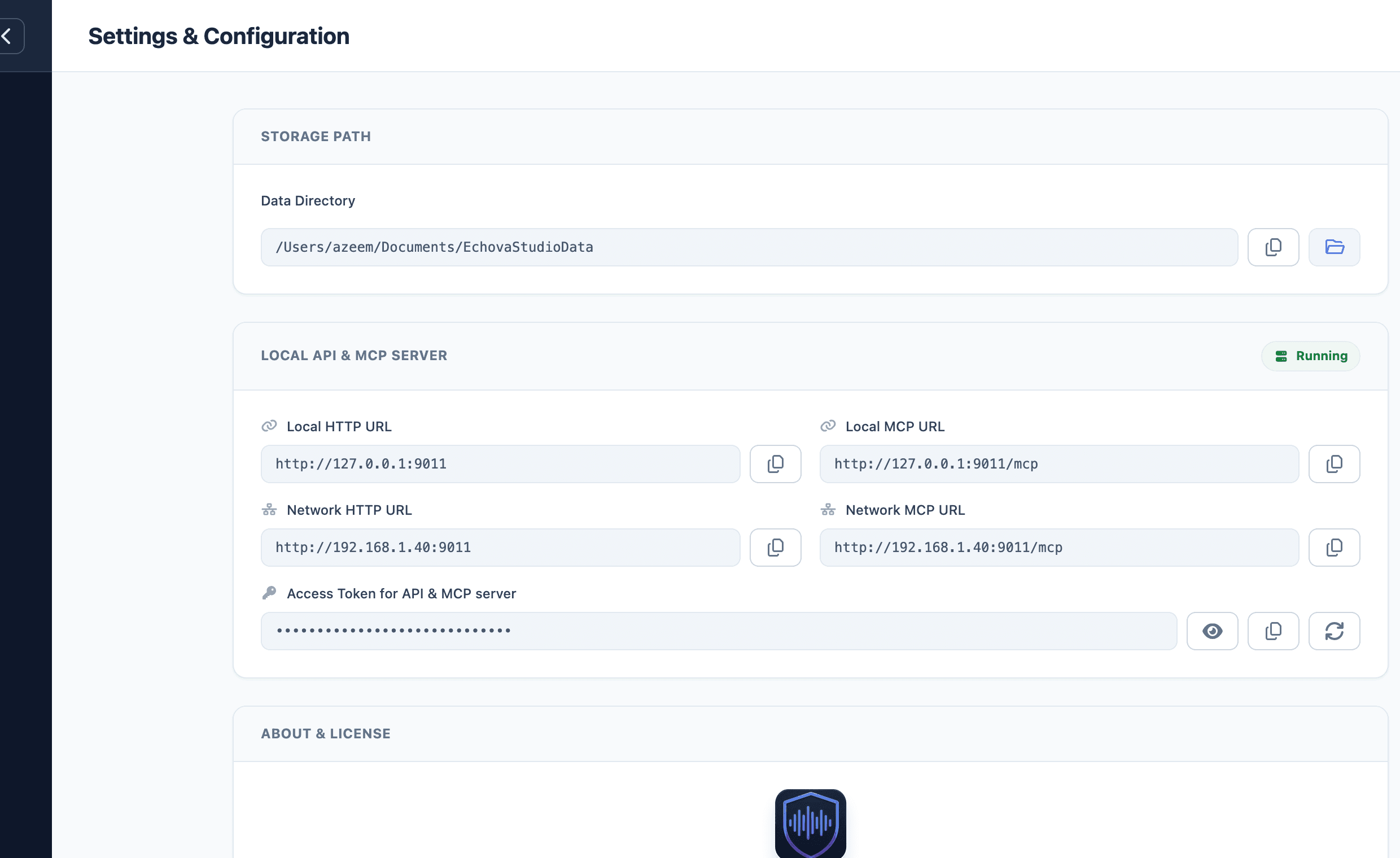
Use Storage Path to see where Echova keeps local data. Use Copy when you need the path for support or debugging. Use Open Folder when you need to inspect files directly.
Generated audio, job artifacts, app configuration, and saved preset data are local. Keep the storage folder on a drive with enough free space if you generate long audio, video dubs, or many alternate takes.
Open the folder when you need to move generated files into another editor, inspect output from a failed job, or share a file path with support. Do not delete files from this folder unless you are sure they are not needed by an active job.
If you move the storage folder, choose a drive that is fast and reliable. External drives can work, but disconnecting them during a render can break active jobs or make library files appear missing.
Use the local API and MCP server
The Local API & MCP Server section shows whether the local server is running.
Use Local HTTP URL for integrations running on the same machine.
Use Network HTTP URL only when another device on your network needs to reach the local server.
Use Local MCP URL or Network MCP URL when connecting MCP clients.
Keep the access token private. Use Reveal token only when you need to copy it into a trusted local integration. Use Rotate token when you believe the current token should no longer be used.
Use local URLs for tools running on the same computer. Use network URLs only when another trusted device on your network needs to connect. If a connection stops working after rotating the token, update the token in the connected client.
Use the status badge first. If the server shows Offline, copied URLs will not work until the local API starts again.
Use public URLs only when they are shown by the app and you understand which outside tool needs them. For normal local workflows, the local URLs are enough.
Troubleshoot local connections
If another tool cannot connect, check the server status first. Then confirm the URL, port, and token copied from Settings match the client configuration.
If you rotate the token, any connected client using the old token must be updated. If the connection is only for the same computer, prefer the local URL instead of a network URL.
Manage license and updates
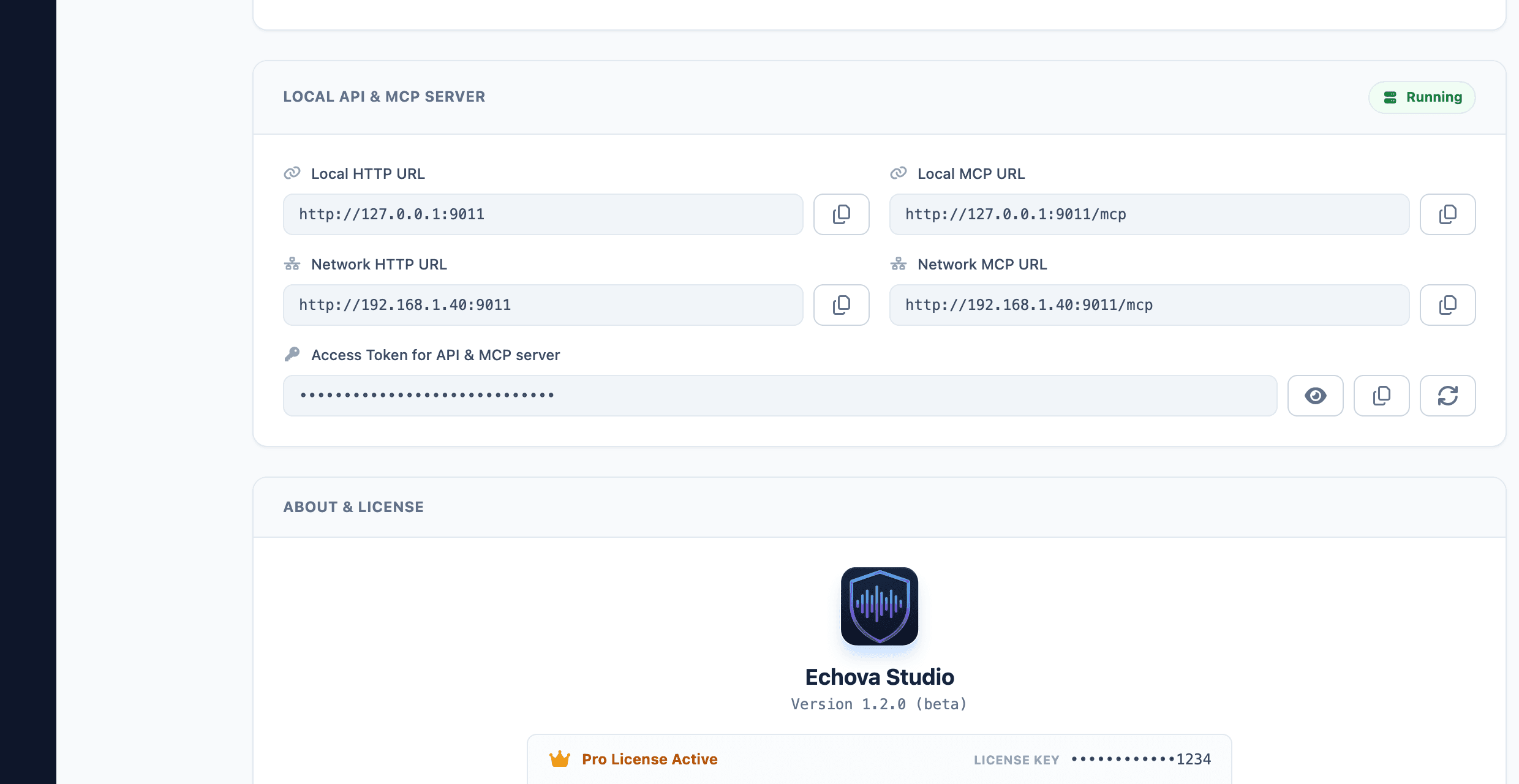
The About & License section shows the installed app version and license status.
Use Unlink This Device only when moving a license to another machine.
Use Check for Updates when you want the app to check for a newer build.
Use the Terms of Service and Privacy Policy links when you need the current policy pages.
If a Pro workflow is unavailable, check this page before reinstalling models. A model can be installed locally while the feature still requires an active Pro license.
If an update is available, the app shows the latest version and a download link. Finish active renders before installing an update so long jobs are not interrupted.
Before asking for support
Open Settings and note the app version, license status, and whether the local server is running if the issue involves API or MCP access. Do not share tokens publicly. If support needs connection details, share only the non-secret status and follow their instructions for any sensitive diagnostics.