Create an AI Voice
Design a new AI voice from a text description and save your favorite generated option.
Create New Voice lets you design a synthetic voice from a written description. Use it when you do not have a speaker recording, or when you want a voice built for a specific role such as a podcast host, narrator, instructor, or product explainer.
Choose this flow when the voice role matters more than matching a real person. Choose Clone Voice instead when the output must sound like a specific speaker, and choose Add Emotions when you already have the right voice but need different delivery styles.
Create the voice
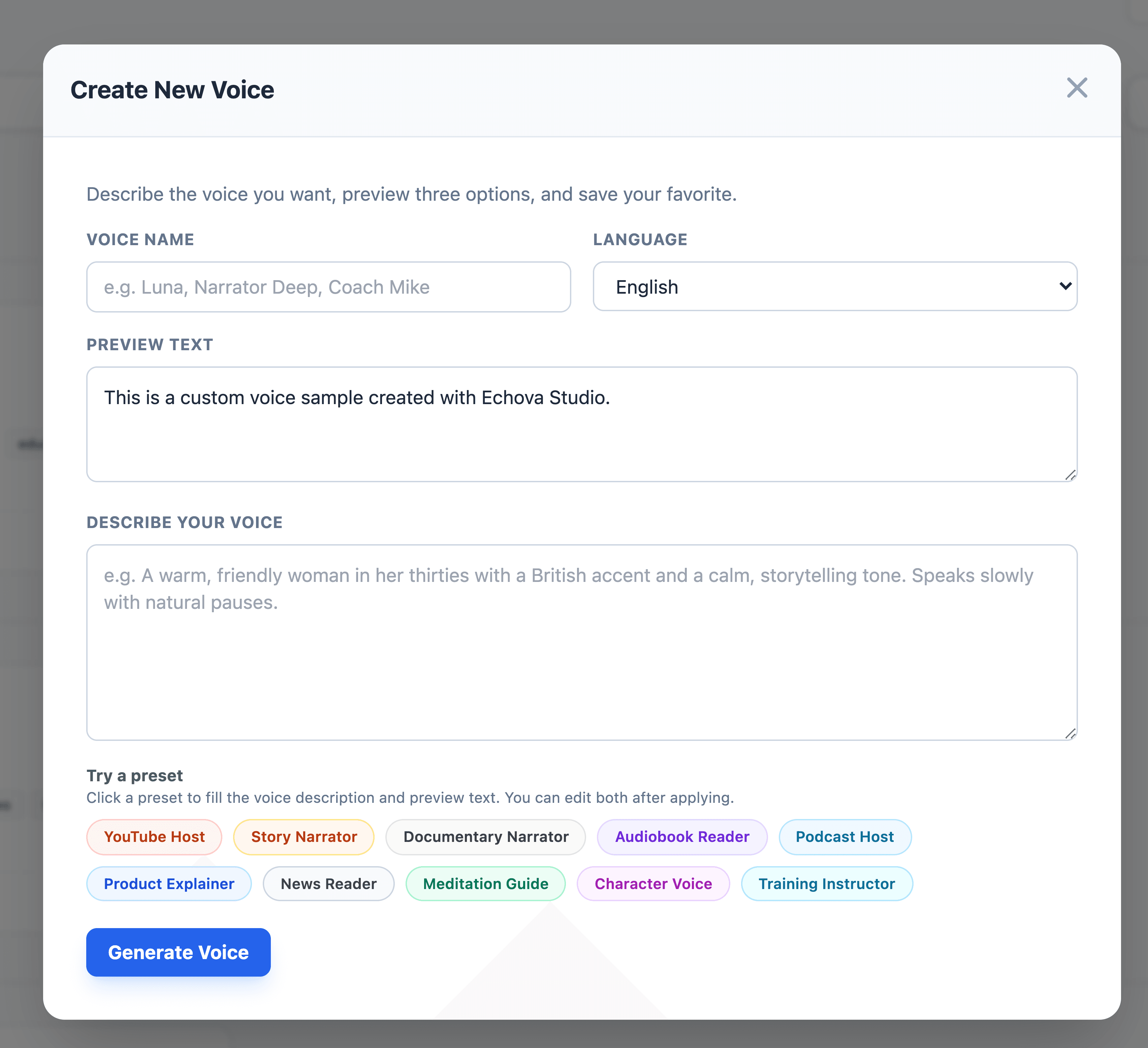
- Open Voice Lab.
- Select Create New Voice.
- Enter a Voice Name.
- Choose the Language.
- Edit Preview Text so the generated samples use words and pacing close to your real use case.
- Describe the voice you want in Describe Your Voice.
- Optionally select a preset such as Podcast Host, Audiobook Reader, Documentary Narrator, or Product Explainer.
- Select Generate Voice.
- Listen to the generated options.
- Select the option that best matches the target voice.
- Select Save Voice.
- Find the saved voice in My Voices, then use Use in Studio when you are ready to generate speech.
Write a useful voice prompt
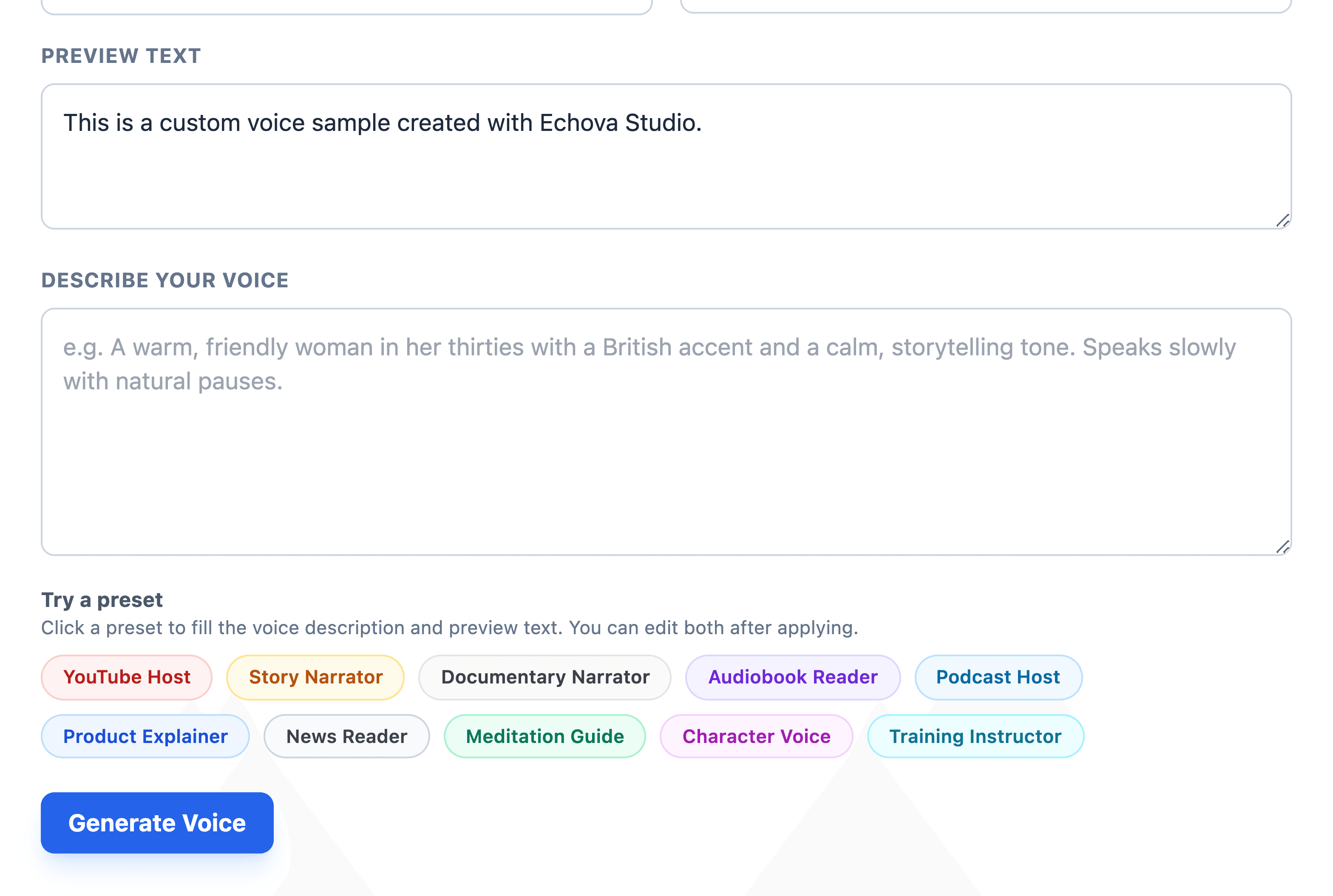
Describe the speaker role, delivery, tone, age impression, accent, and pace. Keep the prompt specific enough to guide the model, but focused on the sound you need.
Examples:
Warm product explainer with a confident pace, neutral American accent, medium energy, and clear pronunciation.Calm audiobook narrator with mature tone, gentle pacing, and expressive but restrained emotion.Bright podcast host with conversational energy, friendly tone, and crisp delivery for short intros.
Match Preview Text to the real work. A voice generated from a short ad line may not be the best match for long training narration, and a calm paragraph may not reveal whether a voice can handle energetic product copy.
Avoid asking for too many conflicting qualities in one prompt. A voice cannot be both very slow and very energetic, or both flat and highly emotional. Pick the traits that matter most for the use case.
Use this prompt formula when you are not sure what to write:
speaker role + language or accent + tone + pace + project use
For example, clear product trainer, neutral American English, friendly but direct tone, steady pace, for software walkthroughs.
Evaluate the options
Generate a few candidates and listen with the real project in mind. The best option is usually the voice that stays understandable and comfortable over time, not the one that sounds most dramatic in a short preview.
Check:
- Does the voice fit the audience?
- Is the accent appropriate for the script?
- Are words easy to understand?
- Does the pace match the content?
- Would the voice still work for a five minute or ten minute project?
When to regenerate
Regenerate when all options miss the intended role, sound too similar, or do not fit the script. Change the description or preview text before generating again so the next set of options has a clearer target.
If the feature asks for a model or plan requirement, open Models from the sidebar and install the required voice design model before returning to Voice Lab.
After saving the voice, test it in Studio with a short script before using it for a long render. If the voice is close but the delivery needs more style, add emotion samples or tune the Studio model settings.
After saving
Open the saved voice from My Voices and send it to Studio. Generate a short test with your real script style. If the voice is good but the mood is too neutral, add emotion styles. If the voice is good but the timing feels off, keep the voice and adjust Studio settings such as speed, model, and advanced controls.