Transcribe
Turn audio or video files into editable transcripts and subtitle files.
Transcribe creates text from audio or video files. Use it when you need a transcript for review, subtitles, or a starting point for dubbing and editing.
Before you start
Choose the cleanest version of the media. Speech recognition works best when the speaker is close to the microphone, the language is clear, and people are not talking over each other.
If the file has strong background music or noise, run Voice Isolator first and transcribe the cleaner vocal output. This is often faster than correcting a poor transcript later.
Create a transcript
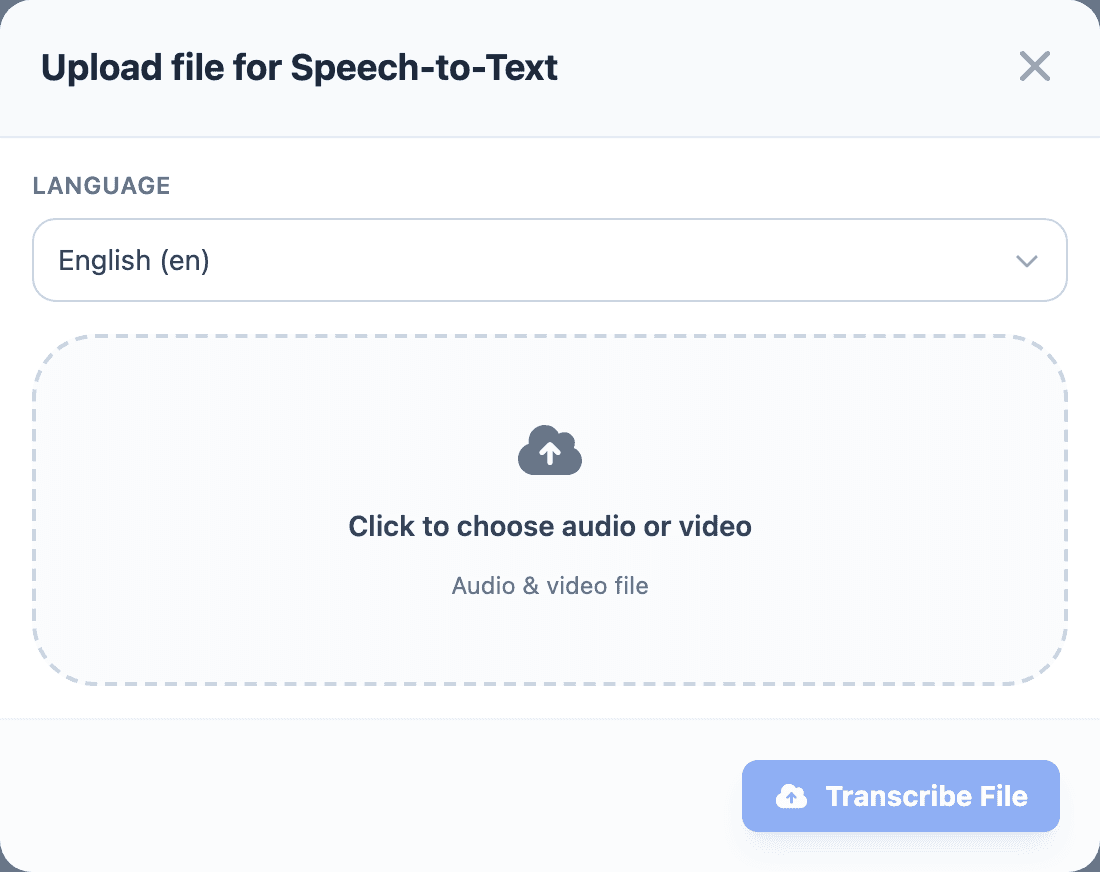
- Open Transcribe from the sidebar.
- Select Transcribe file.
- Choose the source Language.
- Choose an audio or video file.
- Select Transcribe File.
Choose the language spoken in the file, not the language you want to translate into. Transcribe creates text from the source media; dubbing handles translation later.
Review and edit
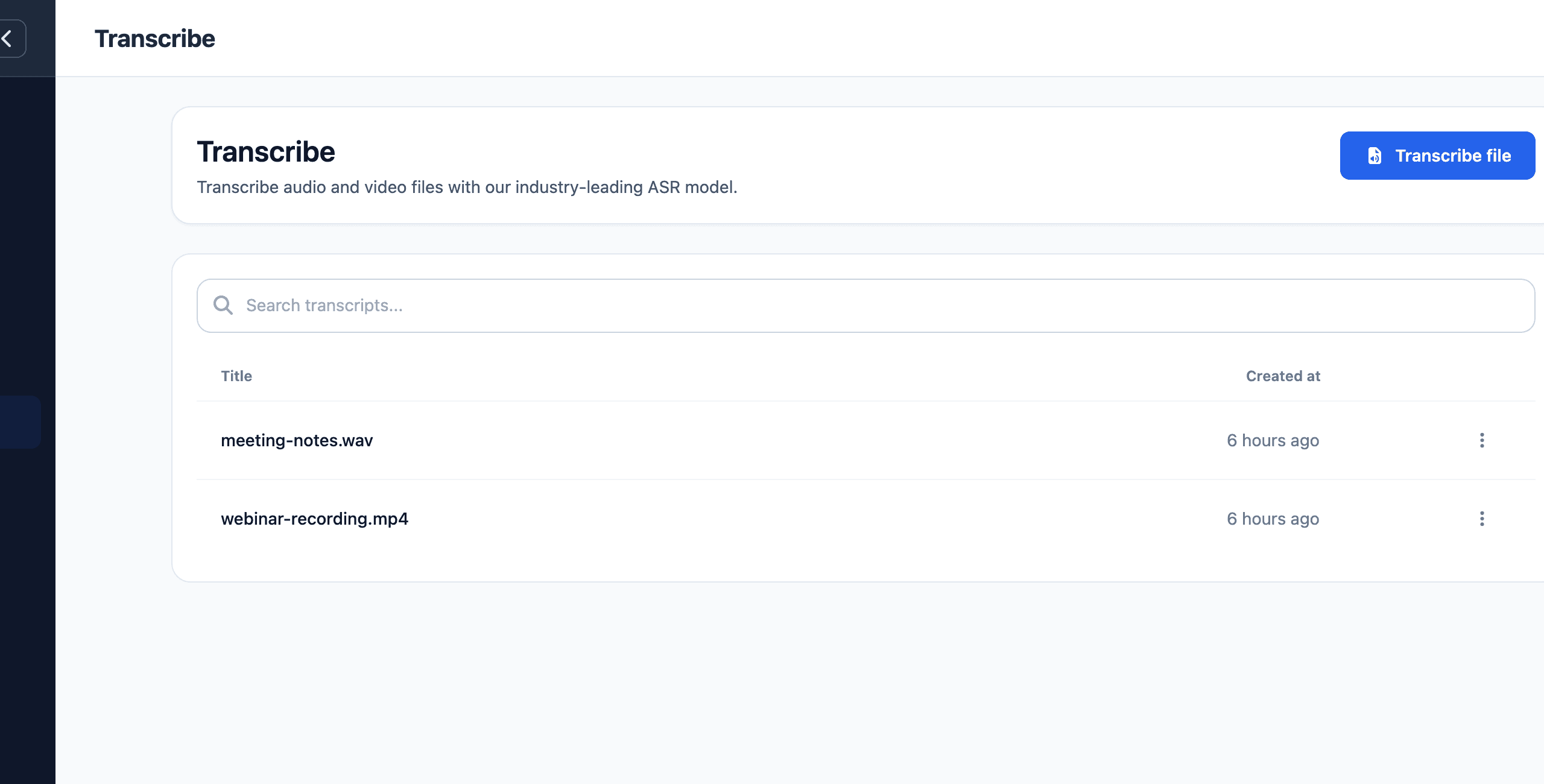
Open a finished transcript from the list. Use the transcript view for normal text review and the SRT view when timing matters.
- Read through the transcript.
- Correct recognition mistakes.
- Save changes when editing subtitles or timed text.
- Export the format you need.
Use the first review pass for meaning and the second pass for details. Names, product terms, acronyms, dates, prices, and numbers are the most common items to check manually.
Export formats
Use plain text when you only need the spoken words.
Use SRT or VTT when the transcript needs timing for captions, subtitles, or video editing.
Use SRT when you are moving captions into most video editors. Use VTT when the captions are for web playback or platforms that prefer WebVTT.
Use the plain text export when the transcript will become a script, article, or review document. Use timed formats when the transcript must stay synchronized with media.
Use transcripts in other workflows
Use transcripts as source material for subtitles, summaries, script cleanup, translation review, and dubbing preparation.
For dubbing, the transcript needs to be corrected before rendering the final voice. If the transcript has the wrong words, the dub will usually repeat that mistake.
Improve transcript quality
Use the cleanest source file available. Speech recognition works best when the speaker is clear, background music is low, and the file does not contain multiple people talking over each other.
If the file has heavy music or noise, run Voice Isolator first and transcribe the cleaner vocal output.
For interviews or meetings, review speaker names, acronyms, product names, and numbers before exporting. These details are easy for speech recognition to misunderstand.
If transcription is unavailable
Open Models and install the speech recognition model. Transcribe requires the local speech recognition dependency before it can process files.