Models
Install and check the local engines, workflow tools, and voice models used by Echova Studio.
Models is where you prepare Echova Studio for local generation, dubbing, transcription, and cleanup work. Use this page when a workflow says something is missing, when a model download was interrupted, or when you want to understand which engine is best for the job.
Installing every model is not required. Start with the workflow you want to run, install the dependency or model it needs, then return to that workflow.
Before installing
Check disk space and network stability before downloading large models. Keep the app open while a download is running, and avoid starting several large downloads at once unless you are sure the connection and storage drive can handle it.
Install the smallest model that lets you test the workflow first. After the workflow is working, install a larger or higher-quality model for final output.
Start with the workflow
Use this as the setup path:
- Studio text to speech: install at least one TTS model. Start with Pocket TTS for fast local drafts.
- Clone Voice: install a voice cloning model such as Qwen3 TTS 0.6B, Qwen3 TTS 1.7B, VoxCPM 1.5, or a Chatterbox model, depending on the language and quality you need.
- Create an AI Voice: install Qwen3 TTS 1.7B (Voice Design) before opening the Voice Lab voice design flow.
- Audio Dubbing or Video Dubbing: check System Dependencies, then install Speech Recognition, Audio Separation, and Language Translation.
- Transcribe: install Speech Recognition.
- Voice Isolator: check System Dependencies, then install Audio Separation.
- Large final exports: install the higher-quality model you plan to use and confirm it shows as installed before starting a long job.
Check system dependencies
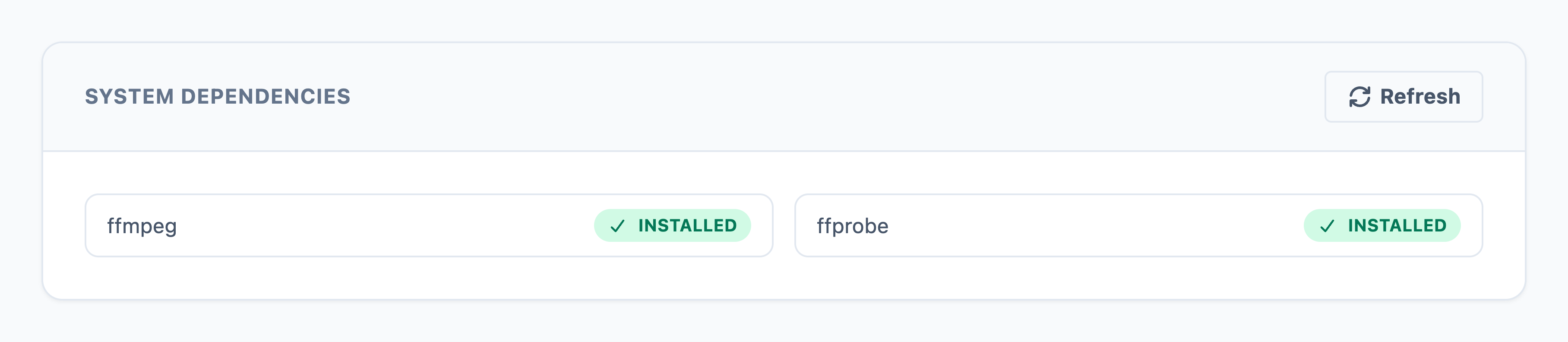
The System Dependencies section checks media tools that Echova uses before some workflows can run.
- ffmpeg handles audio and video decoding, conversion, export preparation, and media processing.
- ffprobe reads media information such as duration, streams, codecs, and file metadata.
- Related media utilities are checked here when the app needs them for timing, conversion, or audio processing.
If a dependency is missing, install it from this page and then select Refresh. Refreshing matters because the app does not assume the system changed until it checks again.
Check this section first when:
- a video or audio file will not load;
- dubbing cannot analyze the source file;
- Voice Isolator cannot process a file;
- export or conversion fails before generation starts.
Install workflow tools
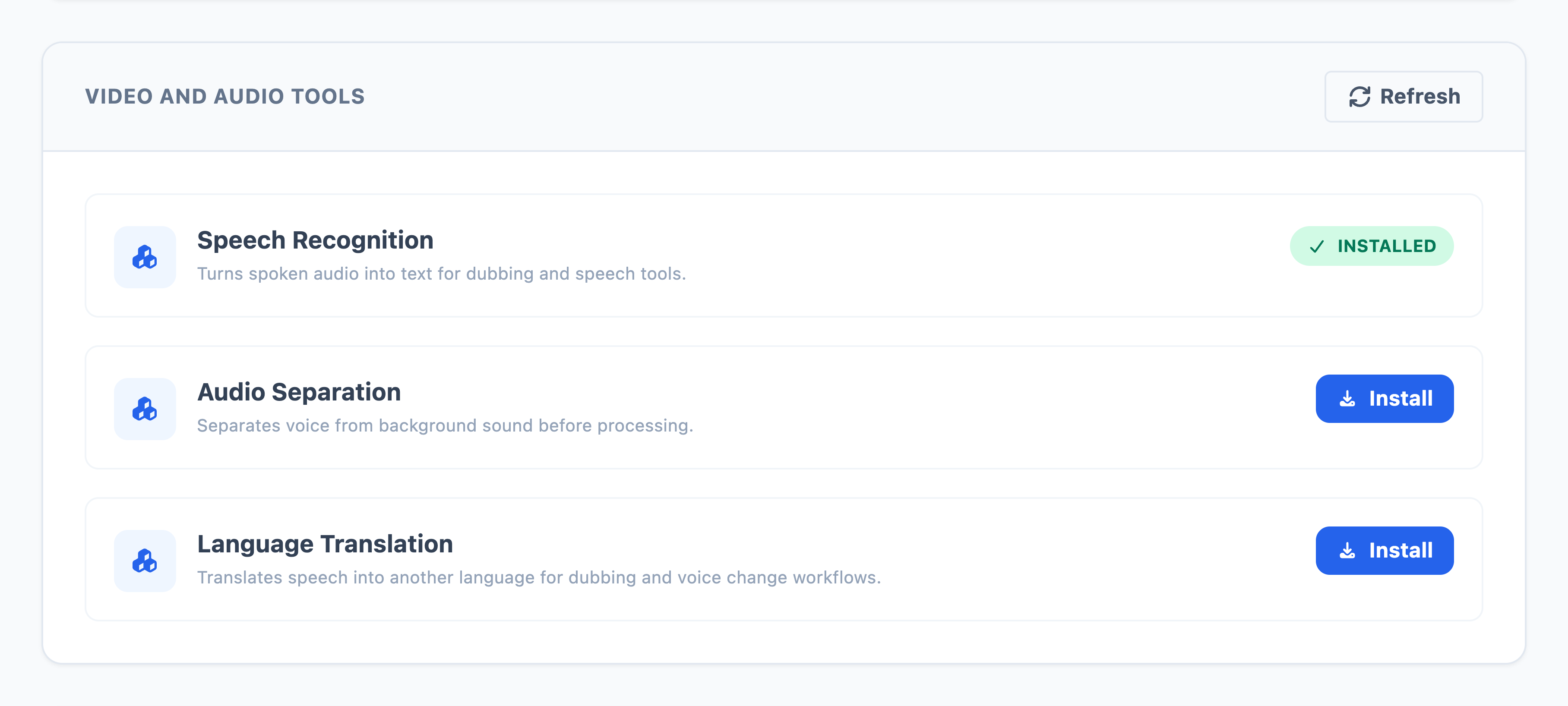
The Video And Audio Tools section contains shared engines used outside normal text-to-speech generation.
Speech Recognition turns spoken audio into text. Install it for Transcribe, Audio Dubbing, and Video Dubbing. If this tool is missing, Echova cannot reliably create the transcript or timing map that downstream steps need.
Audio Separation separates voice from background sound before processing. Install it for Voice Isolator and dubbing workflows where the app needs cleaner speech before generating or replacing audio.
Language Translation translates recognized speech for dubbing and voice-change workflows. Install it when you want the output language to be different from the source language.
Install only the tool required by the flow you are using. For example, a Studio text-to-speech job does not need Language Translation, but a full video dubbing job usually does.
Install voice models
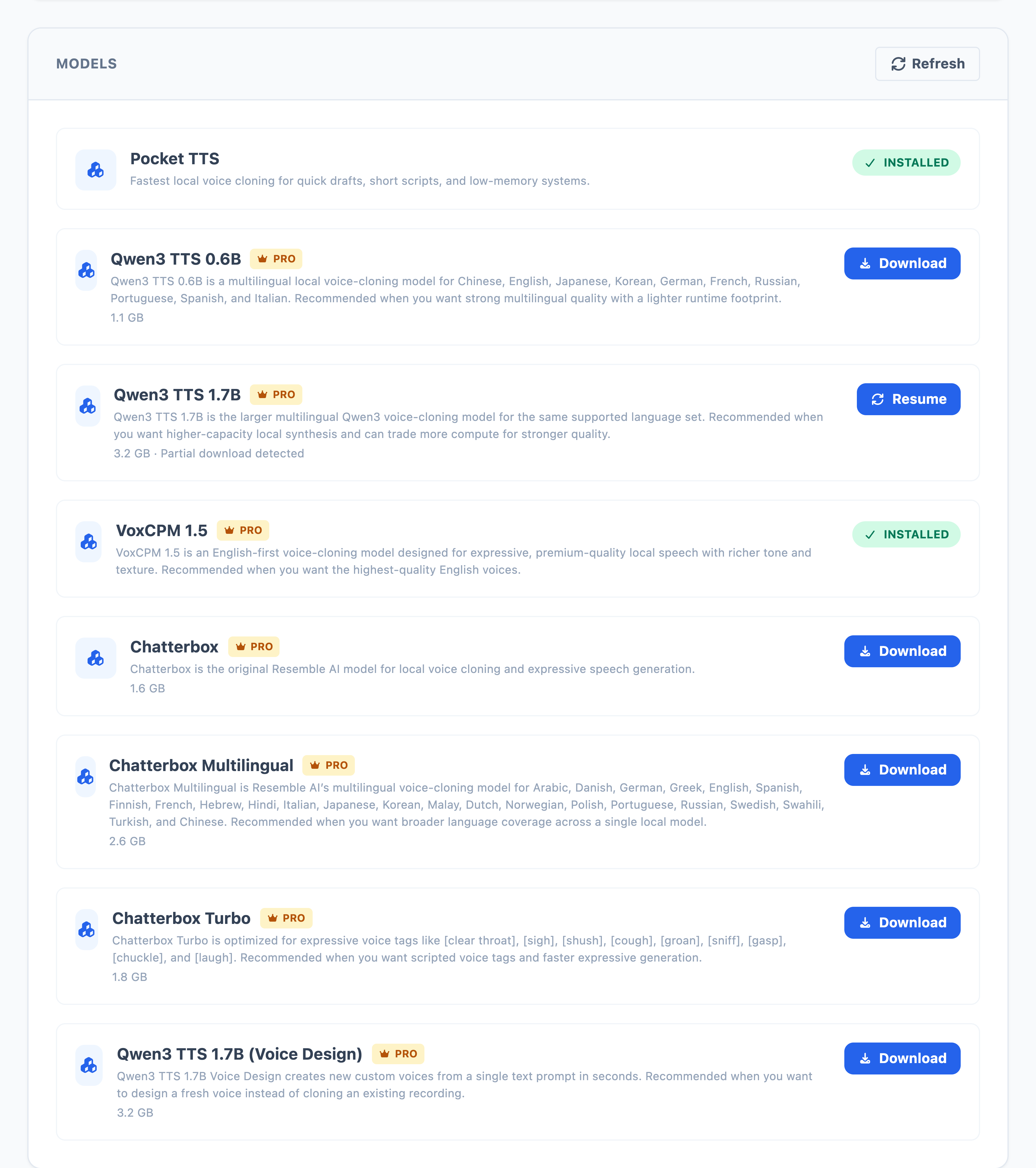
The Models section lists TTS, voice cloning, expressive speech, and voice design models. Each card tells you what the model is for, whether it requires Pro, how large the download is, and what action is available.
Read each card this way:
- Installed means the model is ready for supported workflows.
- Download or Install means the model is not on your machine yet.
- Resume means Echova found a partial download and can continue it.
- Retry means the previous attempt failed and can be started again.
- Pro means the model is available only when the license supports it.
- Refresh checks the current file and install state again.
If a model is installed but does not appear inside Studio, check the selected language, workflow mode, and license state. Models only appear where they are supported.
Choose a model
Choose the model based on the output you want, not just on file size.
Pocket TTS is the fastest local option. Use it for quick drafts, short scripts, testing prompts, and lower-memory machines.
Qwen3 TTS 0.6B is the lighter multilingual Qwen model. Use it when you want multilingual cloned-voice generation but need a smaller runtime footprint.
Qwen3 TTS 1.7B is the larger multilingual Qwen model. Use it when quality matters more than speed and you can give the job more compute.
VoxCPM 1.5 is an English-first premium voice cloning model. Use it when you want richer tone, more expressive English speech, and higher quality than a quick draft model.
Chatterbox is useful for expressive English speech generation and local voice cloning.
Chatterbox Multilingual is the better Chatterbox choice when your workflow spans more languages.
Chatterbox Turbo is optimized for scripted expression tags such as [laugh], [sigh], [chuckle], and [gasp]. Use it when the script itself needs controlled reactions or performance cues.
Qwen3 TTS 1.7B (Voice Design) is for creating a new AI voice from a prompt in Voice Lab. Use it when you want to design a voice instead of cloning one from an existing recording.
Recommended install order
For a simple first setup, install in this order:
- Install Pocket TTS so Studio can generate a quick test voice.
- Install the model you actually plan to use for final output.
- Install Speech Recognition if you use transcription or dubbing.
- Install Audio Separation if you use dubbing or Voice Isolator.
- Install Language Translation only when you need translated dubbing.
- Install Qwen3 TTS 1.7B (Voice Design) only if you use Create AI Voice in Voice Lab.
This keeps setup smaller and makes failures easier to diagnose. If a download fails, you know which exact workflow it affects.
After installing
Return to the workflow that needed the model and reopen it if the model list did not update. If the model still does not appear, select Refresh on the Models page and check the workflow language and license state.
For a new TTS model, generate a short Studio sample before starting a full project. Larger models can sound better, but they also take more time and memory. A short sample confirms that the model works on your machine before you commit to a long render.
Fix common model problems
If a download is stuck, wait a moment, then use Resume if it appears. Large models can take time, especially on slower connections. Avoid starting several large downloads at once.
If a model shows as installed but a workflow still says it is missing, select Refresh on Models, then reopen the workflow. Also confirm the selected language is supported by that model.
If a Pro model is blocked, open Settings and confirm the license status before reinstalling the model.
If generation is slow, use a lighter model for drafts, close other heavy applications, and lower the workload before switching to a larger model. Larger models usually improve quality, but they also need more memory and compute.
For a full explanation of generation controls and model settings inside Studio, see Studio.