Voice Isolator
Separate vocals, background audio, or voice tracks from audio and video files.
Voice Isolator separates speech from background audio. Use it when you need a cleaner vocal track, an instrumental or background track, or a video version with only the isolated voice or only the background audio.
Before you start
Use the best source file you have. Isolation can reduce background sound, but it cannot fully recover speech that is buried under loud music, clipping, heavy reverb, or several people talking at the same time.
For dubbing or transcription prep, start with a short test if the source is noisy. Process a small file first, listen to the vocal output, then decide whether the cleanup strength should change before processing a long recording.
Start a voice isolation job
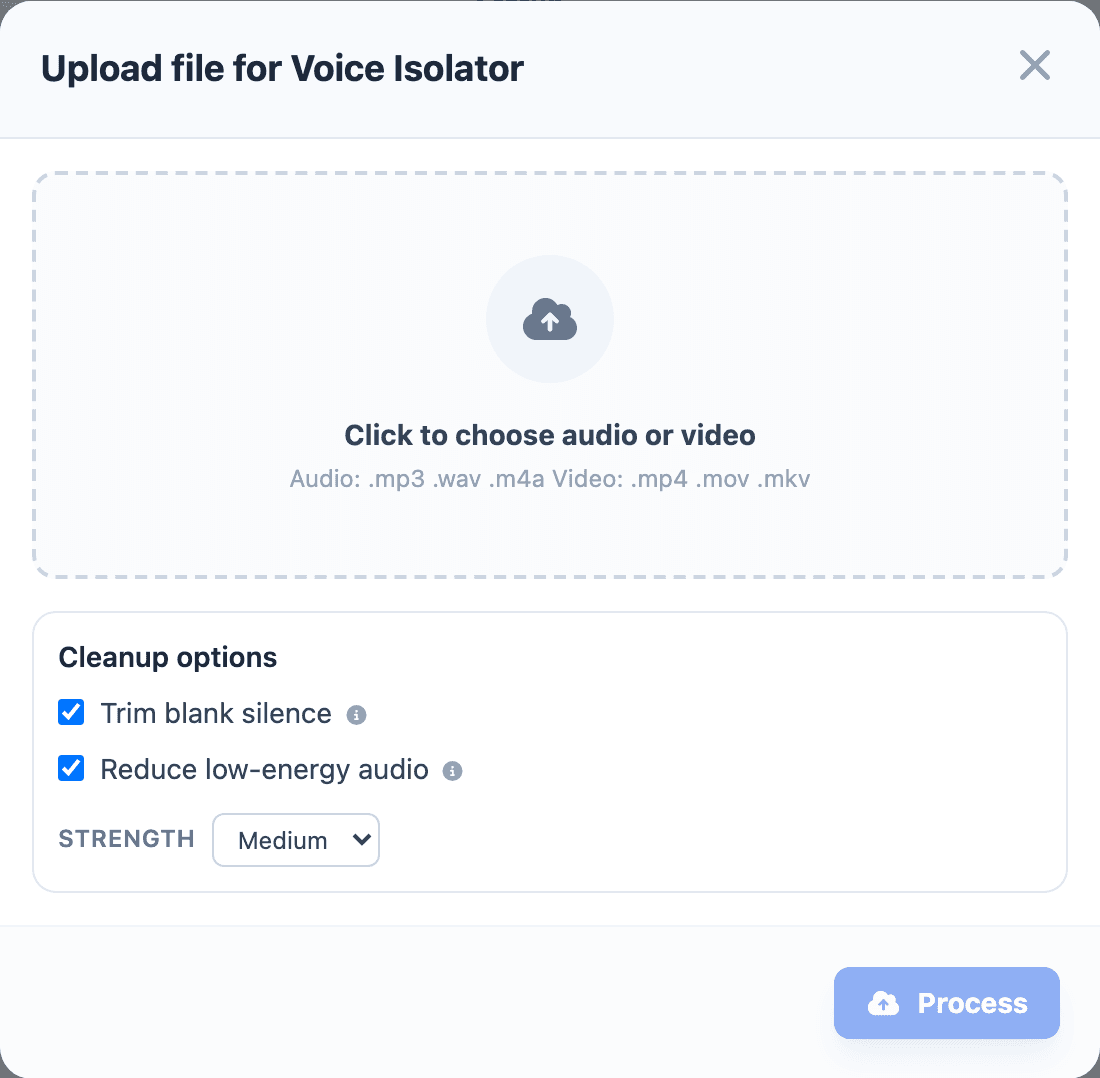
- Open Voice Isolator from the sidebar.
- Select New Voice Isolation.
- Choose an audio or video file.
- For audio files, choose whether to extract Vocal and/or Background Music.
- For video files, choose whether to create Separate Voice, Vocal Only, and/or Background Only outputs.
- Choose cleanup options if needed.
- Select a cleanup strength if you enabled cleanup.
- Select Process.
Choose only the outputs you actually need. Vocal-only output is useful for transcription, dubbing prep, and cleanup. Background-only output is useful when you want music or ambience without the spoken voice.
For a dubbing workflow, create the vocal output first and use that cleaner file for transcription or voice cloning when the original mix has background sound.
Choose cleanup options
Use Trim blank silence when the output has long empty sections at the start, end, or between speech.
Use Reduce low-energy audio when quiet noise or room tone remains in the isolated track.
Use Low strength for light cleanup, Medium for normal cleanup, and High only when the source is noisy enough to need stronger filtering.
Higher cleanup strength is not always better. If the voice starts sounding thin, metallic, or clipped, use a lower strength and process again.
Use High strength only for difficult audio. For normal speech with mild room noise, Low or Medium usually preserves a more natural voice.
Review the result
Open the output and listen before using it in another workflow. Check whether the voice is clearer, whether words are still natural, and whether the cleanup removed too much of the speaker.
Use the vocal output for transcription, dubbing preparation, or clone reference cleanup when it is clearer than the original. Use the background output when you need music or ambience without the spoken voice.
If the voice sounds thin, watery, clipped, or metallic, process again with a lower cleanup strength. If too much background sound remains, try a higher strength or start from a cleaner source.
Use previous jobs
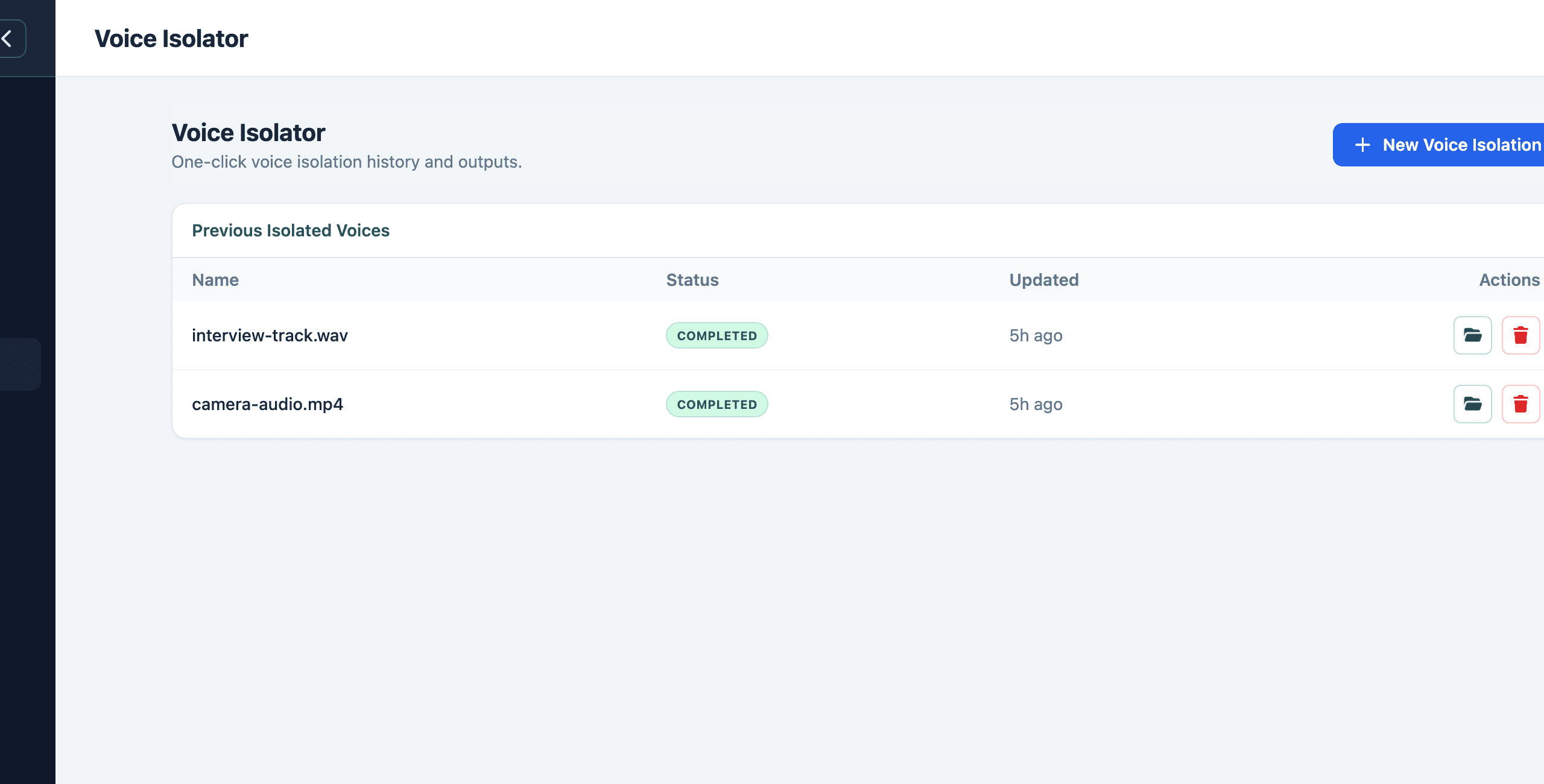
The Previous Isolated Voices table keeps prior jobs. Use it to check status, open the output folder, resume a paused or failed job, or remove jobs you no longer need.
For dubbing, use the isolated vocal output as a cleaner source when the original file has music or background noise. For subtitle work, transcribe the isolated vocal output instead of the full mix.
If isolation is unavailable
Open Models and install the audio separation dependencies. Voice Isolator requires local media tooling and the separation model before it can process files.