Studio
Generate voiceover audio from a selected voice and script.
Studio is where you turn text into generated speech. Use it after you have selected a built-in voice, cloned voice, or AI-designed voice from Voice Lab.
Basic Studio flow
Use this order for most projects:
- Choose the voice.
- Choose the language.
- Choose the model.
- Paste a short test script.
- Generate one sample with default settings.
- Fix voice, language, or model problems first.
- Tune performance or advanced settings only after the basic sample is close.
This keeps the workflow easier to diagnose. A wrong voice, unsupported language, or poor model fit cannot be fixed reliably by changing advanced settings.
Choose the voice, language, and model
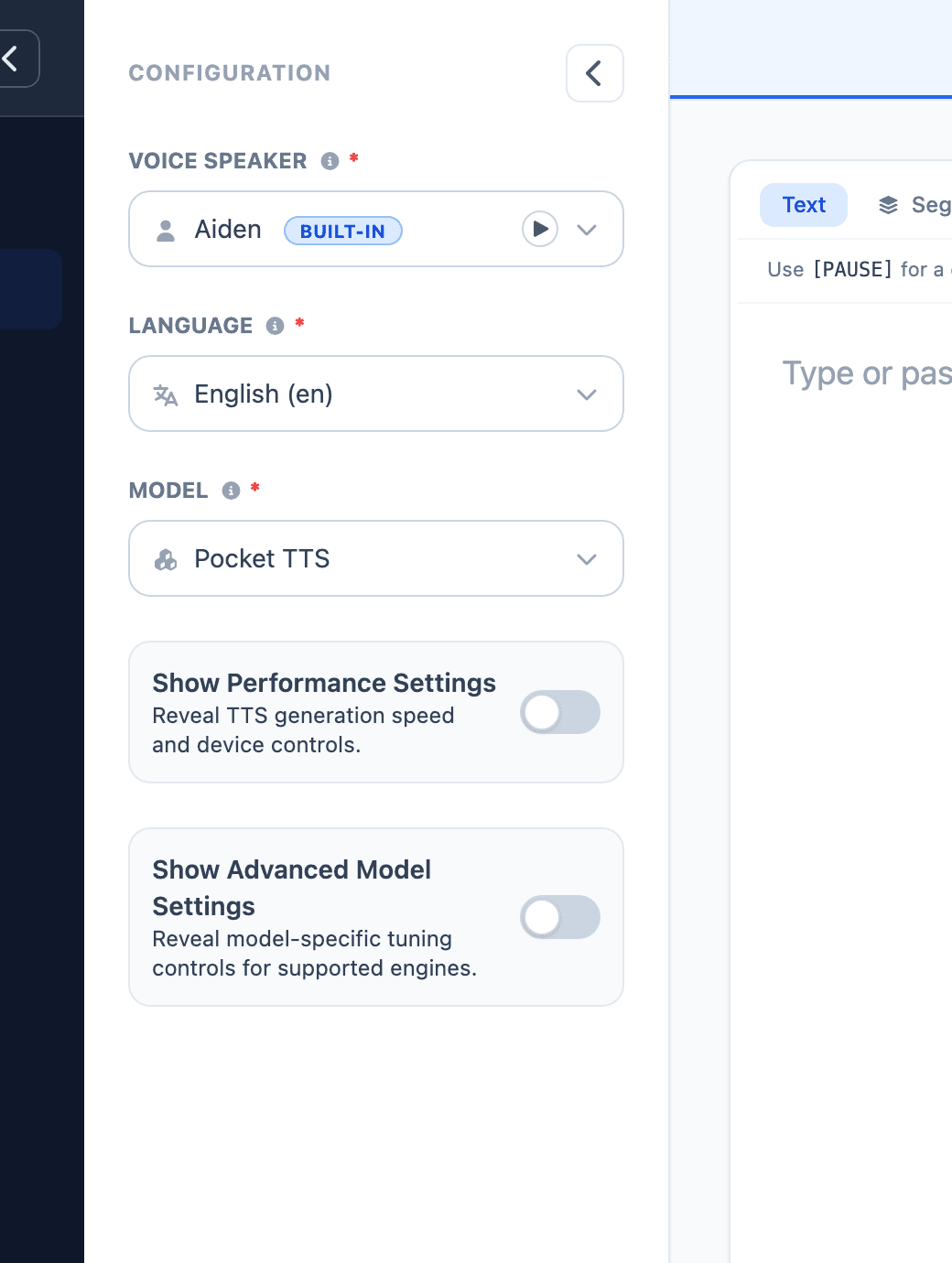
Use Voice Speaker to choose the voice identity. Built-in voices are good for fast production work. Cloned and saved voices are better when the output must match a specific speaker or brand voice.
Use Language as the main language hint for synthesis. The model list and language choices work together, so choose a model that supports the language you want before generating.
Use Model to choose the speech engine. Pocket TTS is the fastest starting point. Qwen3 TTS is useful for multilingual cloned-voice work. Chatterbox and Chatterbox Turbo are useful when the delivery needs more expression. VoxCPM is useful for premium English voice-clone quality.
For a first pass, keep defaults and generate a short sample. If the voice, language, or model choice is wrong, settings will not fix the job. Change the voice or model first, then tune settings only after the basic result is close.
Generate a voiceover
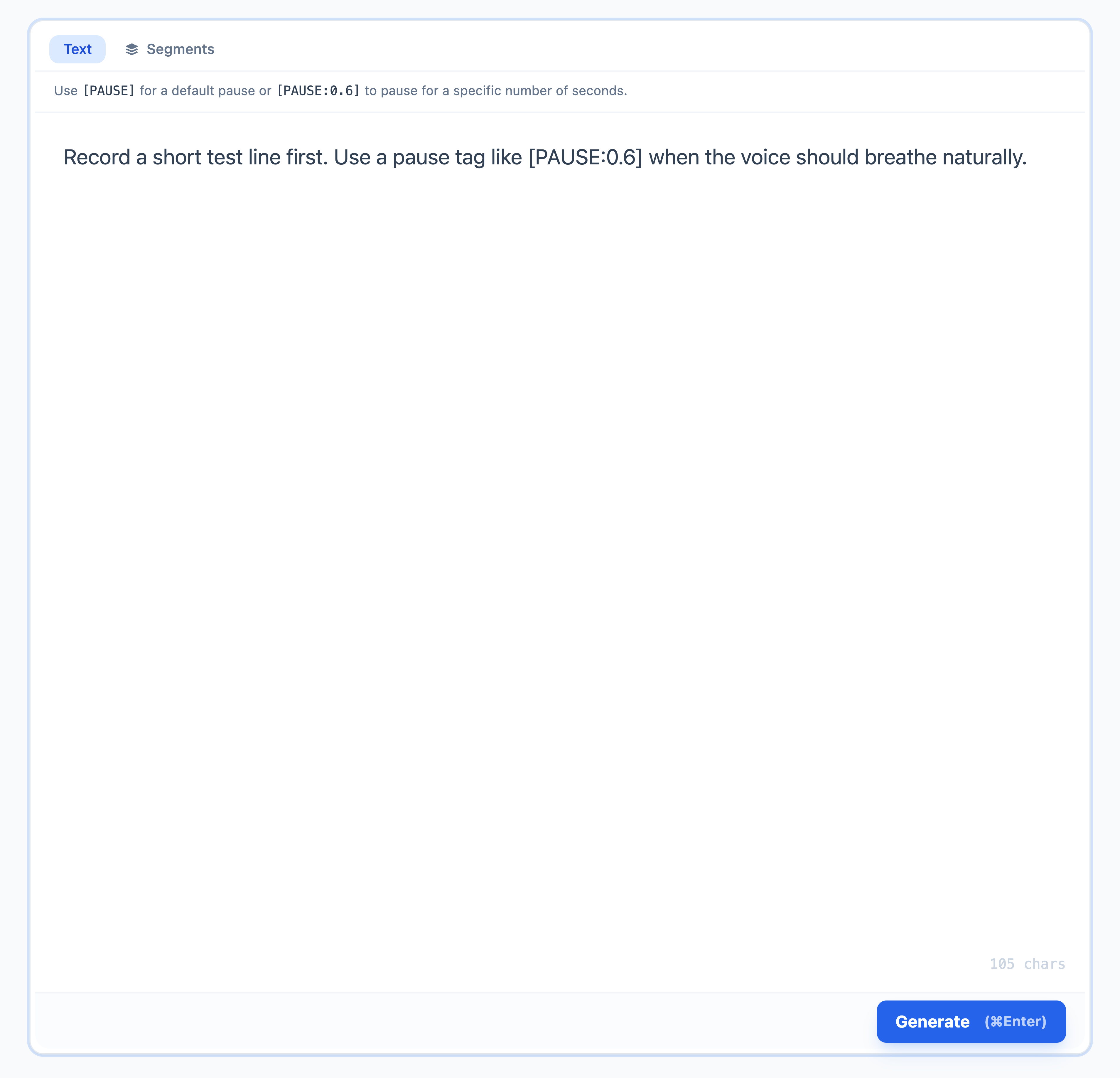
- Open Studio from the sidebar, or select Use in Studio from a voice in Voice Lab.
- Choose the Voice Speaker.
- Choose the Language.
- Choose the generation Model.
- Open the Text tab.
- Type or paste the script.
- Use
[PAUSE]for a default pause, or[PAUSE:0.6]for a specific pause length. - Select Generate, or press
Command + Enter.
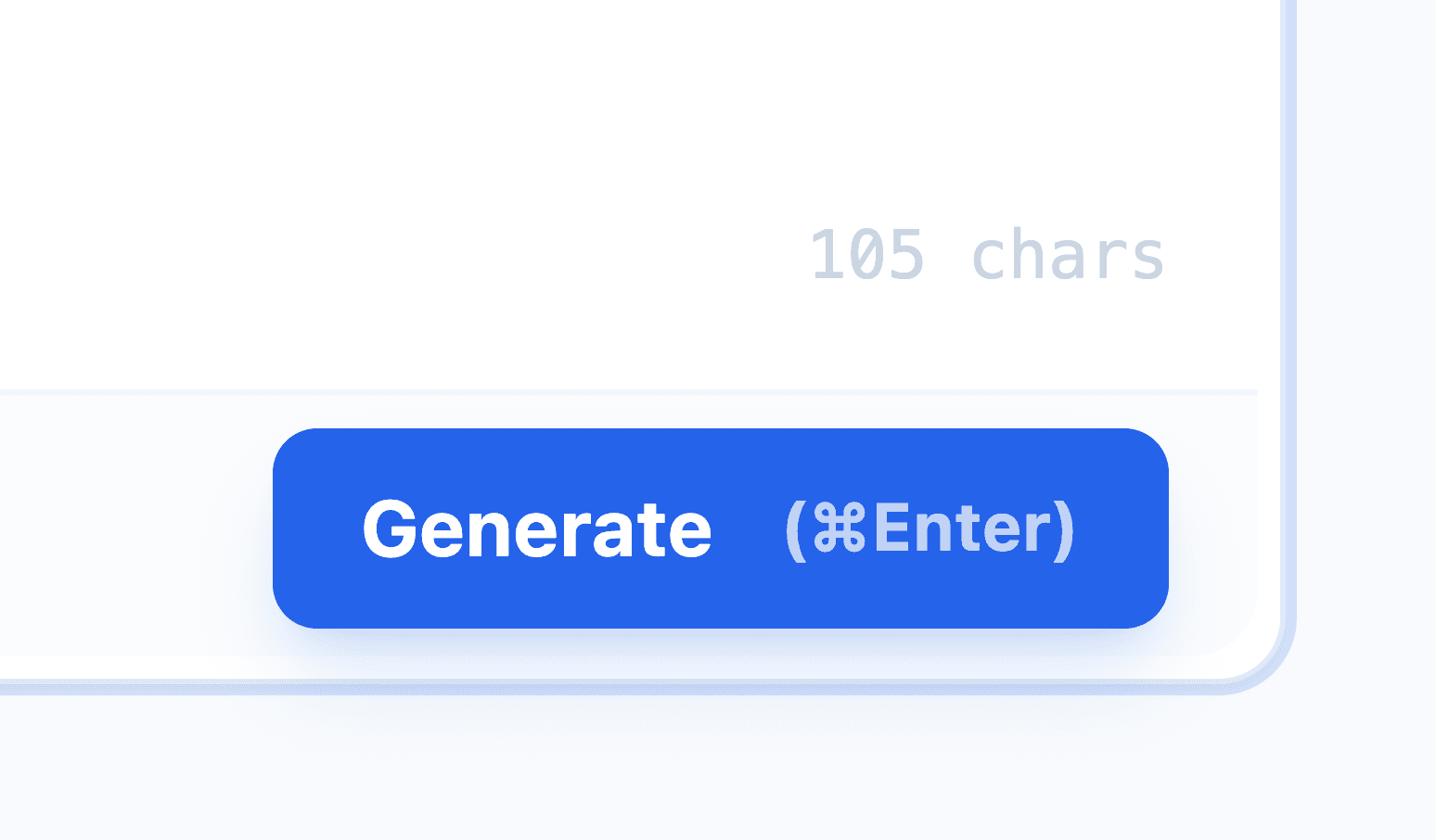
Use the Generate button after the voice, language, model, and script are ready.
Review the first sample
Listen to the first sample before changing several settings. Decide which problem you are solving:
- If the speaker identity is wrong, choose a different voice or improve the clone.
- If words are in the wrong language, check Language and the selected model.
- If words are missing or cut off, shorten the test text or increase the model's length setting when available.
- If the voice is right but too fast or too slow, adjust speed or pacing.
- If the voice is right but the performance is flat, use an emotion style or a more expressive model.
Keep a short approved sample in the Audio Library when you find a good setup. It becomes a reference for future runs.
Work with longer scripts

Use the Segments tab when a script is easier to manage in parts. Segments are useful for long narration, dialogue-style reads, or scripts where you want each line reviewed separately before generation.
Start in the Text tab when the script is short. Switch to Segments when you need more control over structure.
Use pause tags inside the text when you want the voice to breathe naturally:
[PAUSE]adds a normal pause.[PAUSE:0.6]adds a pause of about 0.6 seconds.- Longer pauses can help chapter breaks, scene changes, and callouts feel intentional.
For long work, generate one segment first. When it sounds right, decide whether workers, Qwen Batch Size, or model settings should change for the full render.
Use emotion styles
If the selected voice has saved emotion samples, Studio shows an Emotion field. Choose the emotion before generating so the output follows that delivery style.
If the field is not visible, return to Voice Lab, open My Voices, edit the voice, and add emotion samples first.
Adjust performance settings
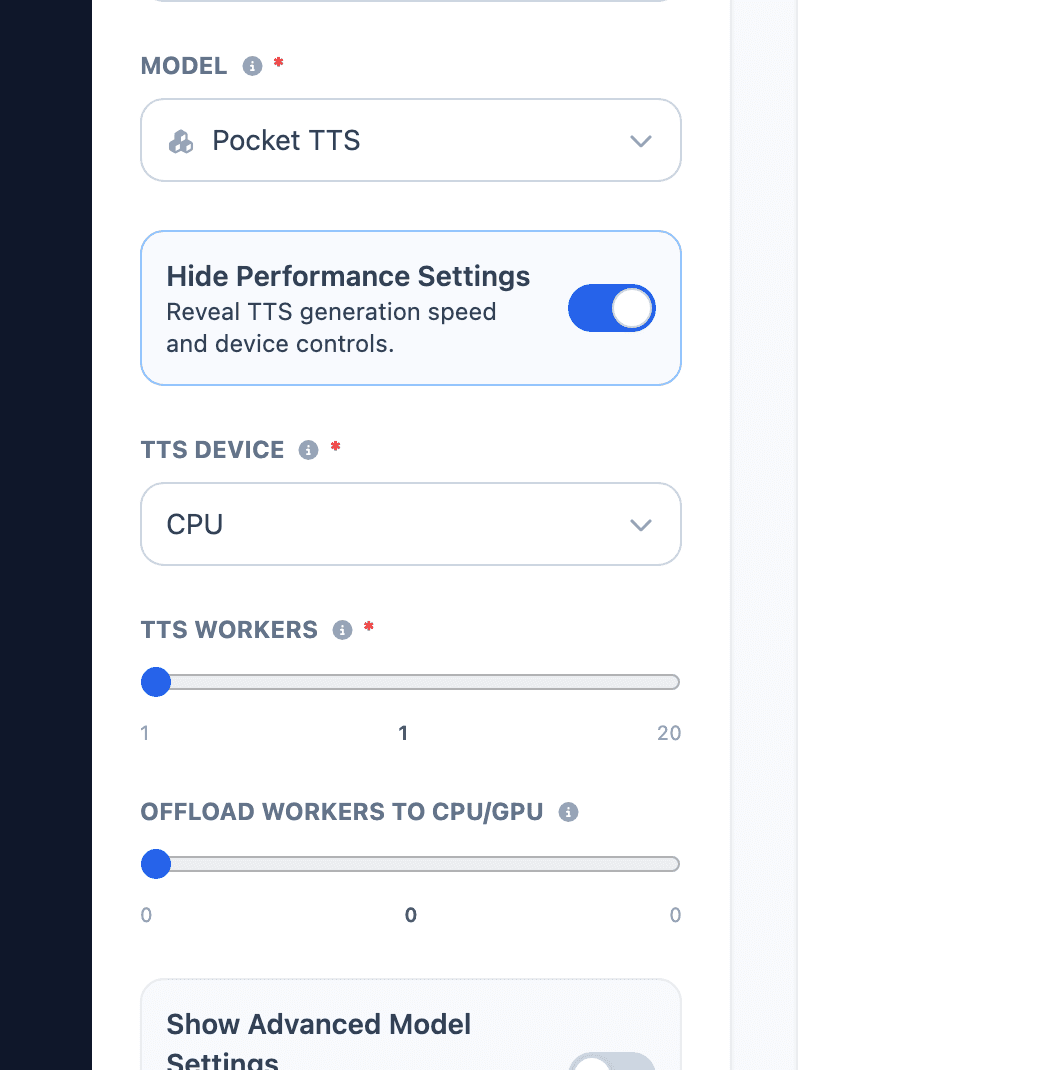
Open Show Performance Settings when generation is too slow, the script is long, or you want to control how much hardware Echova uses.
TTS Device controls where generation runs. CPU is the most stable option. Auto (GPU if available) can be faster for supported engines, but may use more memory or behave differently on some machines.
TTS Workers lets Echova process multiple segments in parallel. The range is 1 to 20, and the default is 1. Use 2 to 4 workers for long segmented scripts, then increase only if the machine stays responsive.
Batch Size appears for Qwen3 TTS models. It controls how many segments each Qwen worker processes together. Keep it at 1 while testing voice quality. Raise it only when you have many short segments and enough memory.
Offload Workers to CPU/GPU starts at 0. Increase it slowly only when a long segmented job is too slow and you are already using more than one worker. If output changes or the app becomes unstable, return it to 0.
For a short Studio preview, use CPU, 1 worker, Batch Size 1, and no offload workers. For a long script, split into segments, start with 2 to 4 workers, and keep CPU if stability matters.
Adjust advanced model settings
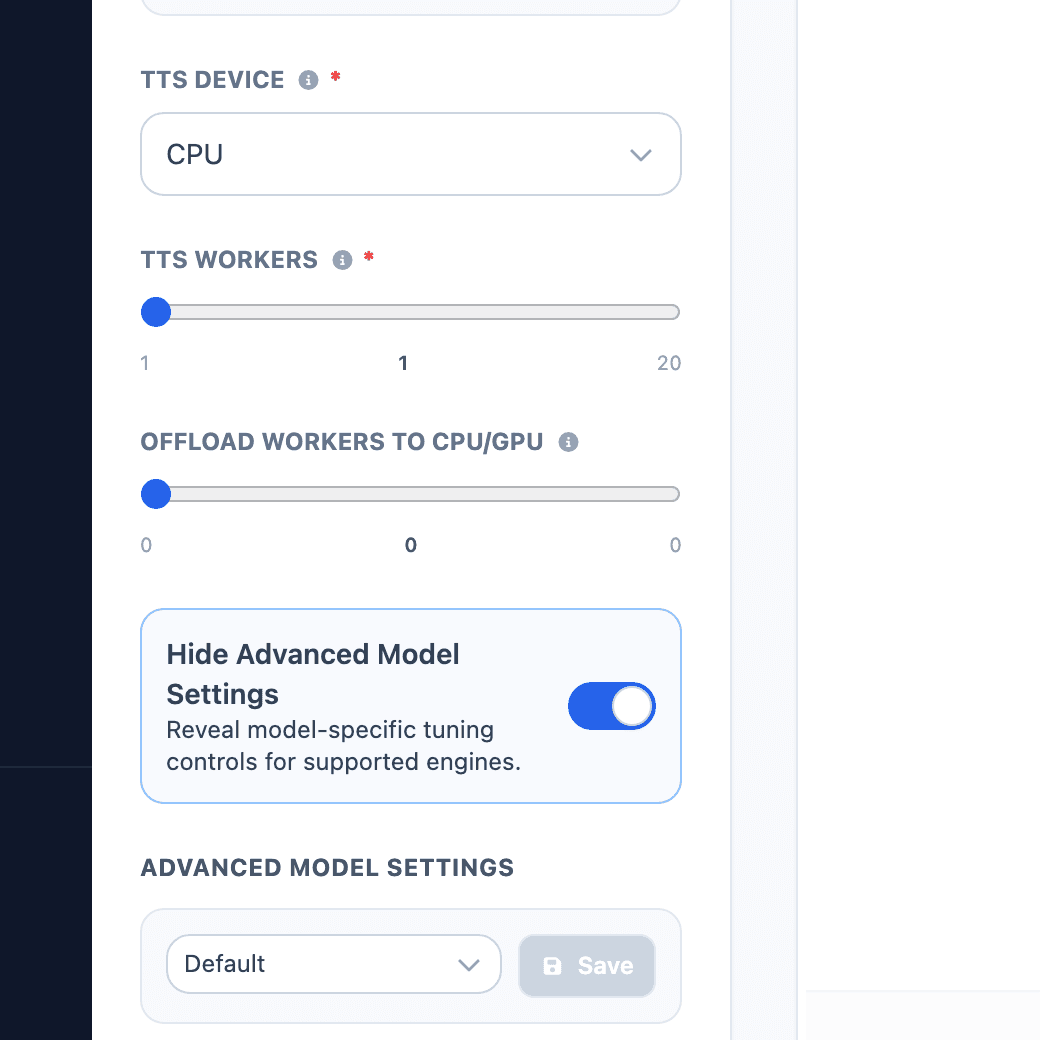
Open Show Advanced Model Settings when the voice is mostly correct but needs tuning. These controls are model-specific, so the visible options change when you switch models.
Use presets when you find a combination that works. Create a preset for a repeatable use case, such as Course narration, Ad read, or Character dialogue, then save it for that same model.
Change one setting at a time, generate a short sentence, compare it to the previous output, then keep or undo the change.
Tune in the right order
Use this order when a result needs work:
- Confirm the script is clean and has the pauses you want.
- Confirm the voice, language, and model are correct.
- Pick the emotion style, if the voice has one.
- Adjust speed or simple pacing controls.
- Change model-specific quality settings.
- Change performance settings only for speed, memory, or long segmented jobs.
Performance controls are not quality controls by themselves. More workers can make a long job finish faster, but they do not automatically make the voice sound better.
Pocket TTS settings
Pocket TTS is the fastest local option and is useful for drafts, short scripts, and lower-memory systems.
LSD Decode Steps controls how much decoding work the model does. Range: 1 to 10. Default: 1. Increase it for better quality when speed matters less. Return it to 1 for fastest drafts.
Temperature controls variation. Range: 0.1 to 2.0. Default: 0.7. Lower values make the voice steadier. Higher values make the delivery more varied. If the voice sounds too random, lower temperature.
Qwen3 TTS settings
Qwen3 TTS 0.6B and Qwen3 TTS 1.7B are useful for multilingual voice cloning. The 0.6B model is lighter. The 1.7B model can give stronger quality but uses more compute.
Max New Tokens controls the upper generation length. Range: 256 to 8192. Default: 8192. If speech cuts off, increase it.
Top K limits how many likely choices the model can consider. Range: 1 to 1000. Default: 50. Lower values are more conservative. Higher values allow more variety.
Top P controls how wide the model's choice pool is. Range: 0.1 to 1.0. Default: 1.0. Lower it when output is unpredictable. Raise it when the voice feels too restrained.
Temperature controls randomness and expressiveness. Range: 0.1 to 2.0. Default: 0.9. Lower it for cleaner narration. Raise it slightly for more expressive reads.
Repetition Penalty discourages repeated sounds, words, or phrases. Range: 1.0 to 2.0. Default: 1.05. Increase it if the output repeats or loops.
Chatterbox settings
Chatterbox and Chatterbox Multilingual are useful for expressive local speech. Chatterbox is English-only. Chatterbox Multilingual supports broader language coverage.
Exaggeration controls how strongly the voice performs the delivery. Range: 0.25 to 2.0. Default: 0.5. Increase it for dramatic or emotional reads. Lower it for calmer narration.
CFG / Pace controls how strongly the model follows the voice and delivery pattern. Range: 0.0 to 1.0. Default: 0.5. Raise it when the model should stick more closely to the reference. Lower it when the read feels forced.
Temperature controls variation. Range: 0.05 to 5.0. Default: 0.8. Stay near default for normal narration. Raise gradually for characters.
Random Seed controls repeatability. Range: 0 to 2147483647. Default: 0. 0 means random. Use a fixed non-zero number when you want similar output each time.
Chatterbox Turbo settings
Chatterbox Turbo is optimized for expressive voice tags like [laugh], [sigh], [chuckle], [gasp], and [clear throat].
Temperature, Top P, and Top K control how varied the result can be. Lower them for more predictable narration. Raise them carefully for expressive or character-style lines.
Repetition Penalty reduces repeated phrasing or loops. Range: 1.0 to 2.0. Default: 1.2.
Min P filters very weak choices. Default: 0.0. Keep it at 0 unless you are intentionally tuning sampling.
Normalize Loudness targets consistent loudness. Keep it on for voiceovers, ads, tutorials, and exports that need consistent volume.
VoxCPM settings
VoxCPM is an English-first model for expressive, high-quality local speech.
CFG Value controls how closely the model follows the prompt and reference. Range: 1.0 to 3.0. Default: 2.0. Increase it when the voice should follow the prompt more strongly. Lower it when the output feels stiff or forced.
Inference Timesteps controls how much generation work the model performs. Range: 4 to 30. Default: 10. Increase it when quality matters more than speed. Lower it for faster drafts.
Dubbing settings
Audio Dubbing and Video Dubbing use the same generation settings, but transcript accuracy usually matters more than advanced tuning. If the dub says the wrong words, fix the transcript first. If the dub has the right words but the voice style is wrong, then adjust model settings.
Quality troubleshooting order
When a Studio render sounds wrong, change one thing at a time:
- For repeated words or loops, lower randomness settings or increase repetition penalty where the model provides it.
- For robotic delivery, try a more expressive model or raise expression controls slightly.
- For unstable pronunciation, lower temperature or use a shorter test line.
- For slow renders, reduce workers back to a stable value, switch to a lighter model for drafts, or split the script into segments.
- For inconsistent volume, enable loudness normalization when the selected model provides it.
Save a preset only after the output works on more than one sentence. A preset based on one lucky sample may not hold up across a full project.
Reuse recent work
Open Recent Sessions when you want to return to a previous script, voice choice, or generation setup. This is useful when comparing voices for the same script or continuing work from an earlier session.
Recent sessions are most useful when you are comparing models. Keep the same script and voice, generate one version with each model, then compare clarity, tone, timing, and how much editing each version needs.