Support
Find help, troubleshoot common problems, and send useful diagnostic details to Echova support.
Support gives you a path from the app to the Echova support website. Use it when a workflow is blocked, a model fails to install, a job does not finish, activation is not working, or output is not matching what you expected.
The fastest support requests are specific. Before sending a message, identify the workflow, the selected model, what you expected, what happened instead, and whether the required tools show as installed.
Before contacting support
Try to narrow the issue to one workflow first. For example, if a dubbed video sounds wrong, decide whether the problem is the transcript, target language, selected voice, render timing, or model quality. A focused report is easier to reproduce than a broad description.
Check these places before sending the message:
- Models, for missing downloads, stalled installs, and required workflow tools.
- Settings, for app version, license state, storage path, updates, and API or MCP server status.
- Audio Library, for generated files, previous takes, and local file paths.
- The workflow page, for the exact voice, language, model, and settings used.
Open support
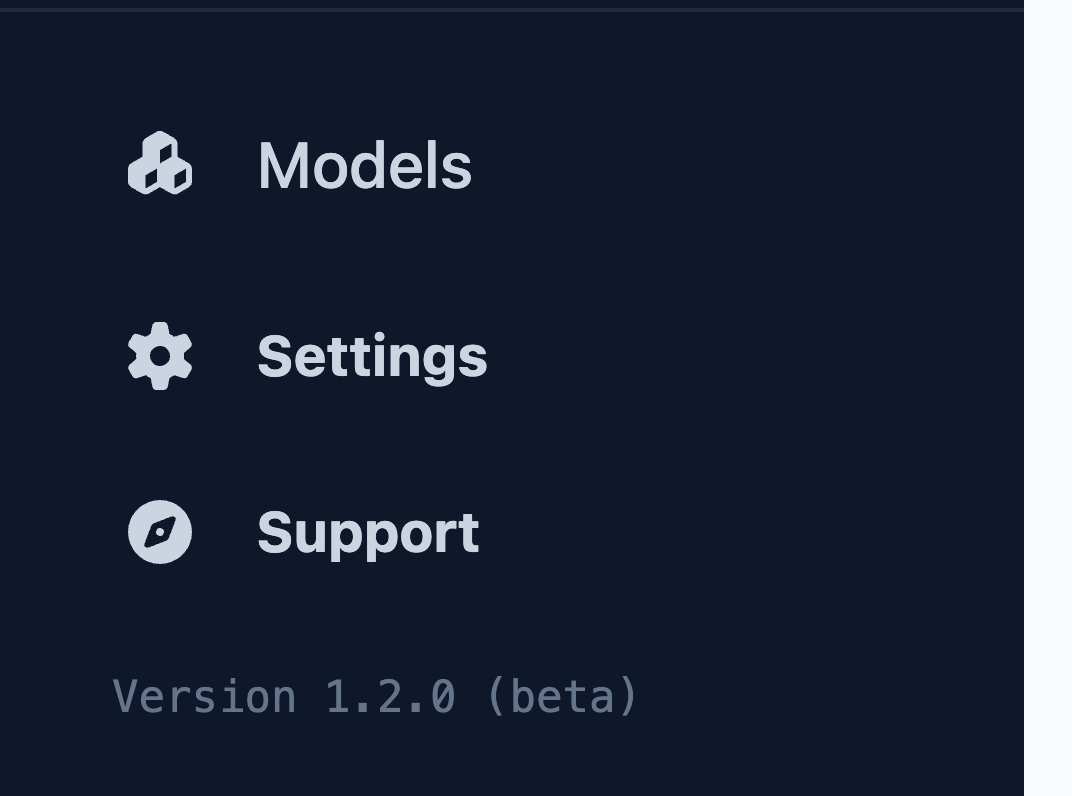
- Select Support at the bottom of the left sidebar.
- The app opens the Echova support site in your browser.
- Search for an answer, open troubleshooting, or send a support message.
If the browser does not open, manually go to the Echova website and open Support from the top navigation.
Choose the right help path
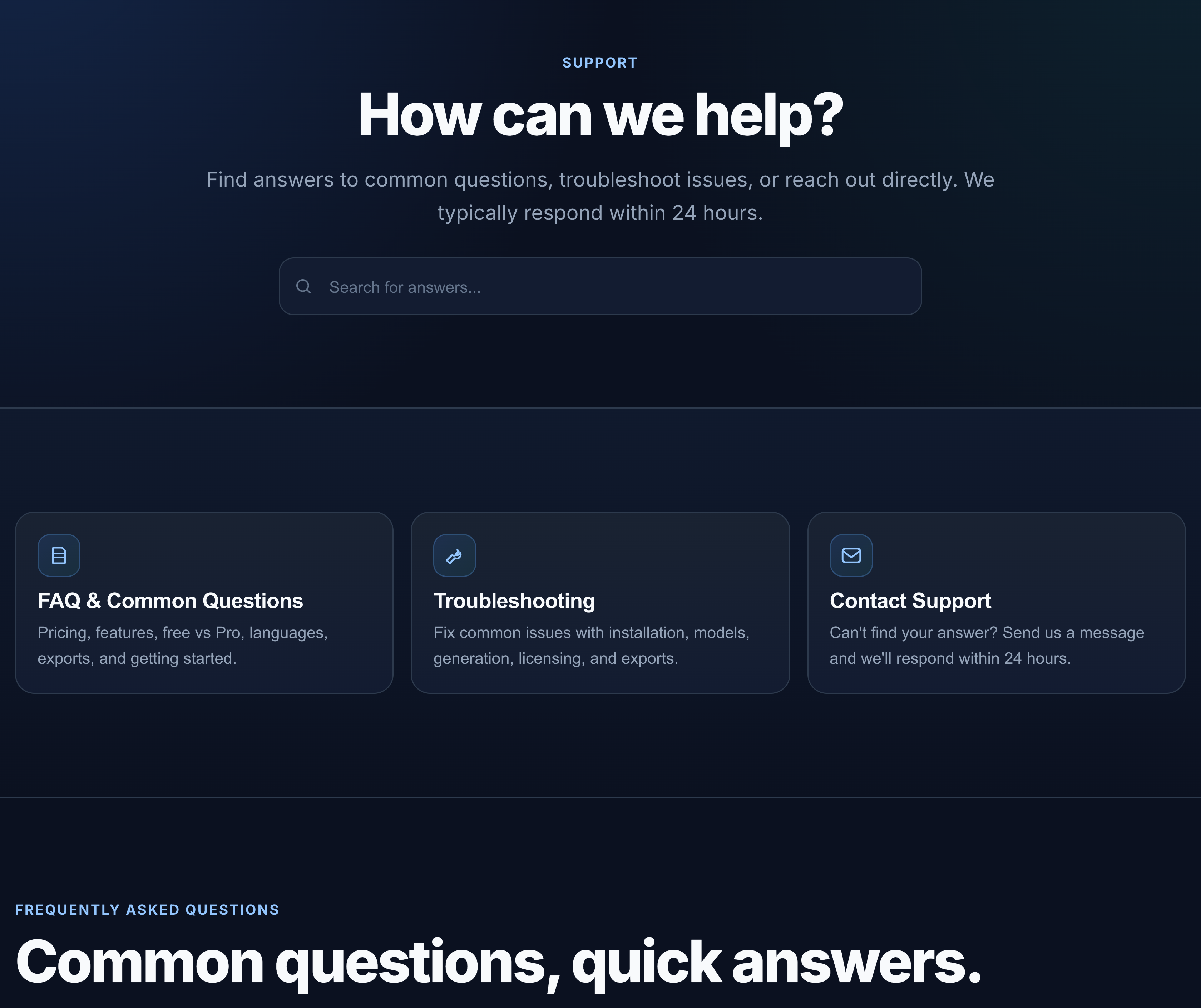
The support page has four starting points:
- Search is best when you know the exact issue, such as "model download", "license", "export", or "transcription".
- FAQ & Common Questions is best for pricing, plan limits, supported languages, export formats, commercial use, and offline behavior.
- Troubleshooting is best for setup problems, failed downloads, slow generation, blocked Pro features, inaccurate transcription, and export issues.
- Contact Support is best when the issue still blocks your work after checking the relevant docs and troubleshooting entries.
Search first when the issue is common. Contact support when the app is stuck, a paid feature is blocked, a job repeatedly fails, or the issue depends on your machine, file, license, or model state.
Send a useful support message
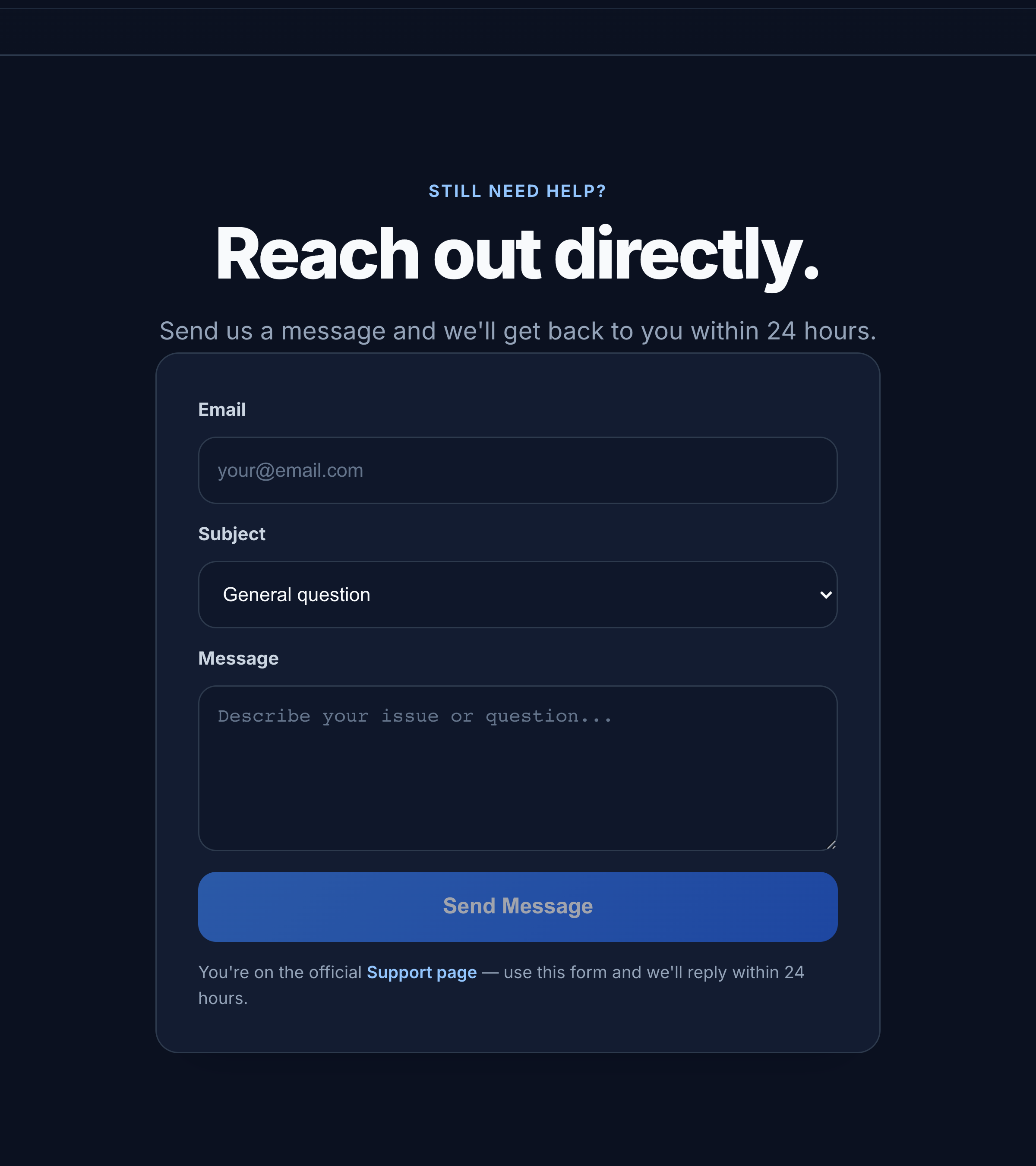
The contact form asks for your email, a subject, and a message. Use the subject that matches the problem, then describe the exact flow you used.
Include these basics:
- app version, from the sidebar or Settings;
- operating system and device type;
- workflow name, such as Studio, Voice Lab, Audio Dubbing, Video Dubbing, Voice Isolator, Transcribe, Models, Settings, or Audio Library;
- selected model and language;
- whether the needed items show as installed in Models;
- exact error text, if the app shows one;
- whether the source file is audio or video, plus its file type;
- what you expected to happen and what actually happened.
Do not only write "it does not work". A short but concrete message is much easier to reproduce.
What to include by issue
For model install or download issues, include the model name, the visible status such as Download, Resume, Retry, Installed, or Pro, and whether Refresh changes the status. Mention if the download fails immediately or stops after progress begins.
For Studio generation issues, include the voice, model, language, text length, output format, and any advanced settings you changed. If quality is the problem, describe what sounds wrong, such as speed, pronunciation, emotion, noise, clipping, silence, or voice similarity.
For Voice Lab issues, include whether you were cloning a voice, creating a prompt-designed AI voice, or adding emotions. For cloning and emotions, mention the reference audio length, whether it has one speaker, and whether the voice is clean and continuous.
For audio or video dubbing issues, include the source language, target language, source file type, duration, whether the file has background music, and whether Speech Recognition, Audio Separation, and Language Translation are installed.
For Voice Isolator issues, include the source file type, whether you are separating voice from music or reducing background noise, and whether the source has overlapping speakers.
For Transcribe issues, include the audio language, whether there is background noise, whether multiple speakers overlap, and whether the problem is missing words, wrong language, timing, or export format.
For Audio Library issues, include whether the problem is import, playback, export, file location, or missing media after moving a file.
For Settings, API, or MCP issues, open Settings and check whether the local API and MCP server show as running. Share the visible status and port only when it is relevant. Do not share tokens or secrets unless support gives you a specific redacted diagnostic step.
For billing or license issues, include the license status shown in Settings and whether the issue is activation, device unlinking, Pro access, or purchase support. Do not paste full payment details into the message.
Message template
Use this structure when you are not sure what to write:
Workflow:
Model:
Language:
Source file type and length:
Expected result:
Actual result:
Error text:
What I already checked:
Example:
Workflow: Video Dubbing
Model: Qwen3 TTS 1.7B
Language: English source to Spanish output
Source file type and length: MP4, 3 minutes
Expected result: translated Spanish dub with timing preserved
Actual result: job stops during transcript creation
Error text: Speech Recognition model missing
What I already checked: Models page shows Speech Recognition installed after Refresh
Protect private information
Do not send passwords, full payment details, API tokens, private license keys, or private customer files unless support specifically asks for a secure diagnostic path.
If you need to describe a private project, summarize the workflow and error instead of pasting confidential script text. For audio or video problems, share only a small test file when support requests one and you have permission to share it.
After sending
Keep the original source file, generated output, and app settings unchanged until the issue is understood. If you change several things while waiting, it becomes harder to know which change fixed or caused the problem.
If you find the answer before support replies, note what fixed it. The same detail can help later if the issue returns on another model, file, or machine.