Audio Library
Find, preview, export, and delete generated audio files.
Audio Library is where Echova lists generated audio files. Use it when you need to find an output again, preview it, export it, open its local folder, or clear old files.
Treat the library as a working area for generated results. Keep important final exports in your project folder as well, especially when the file is for a client, video editor, course, or long-term archive.
Find an audio file
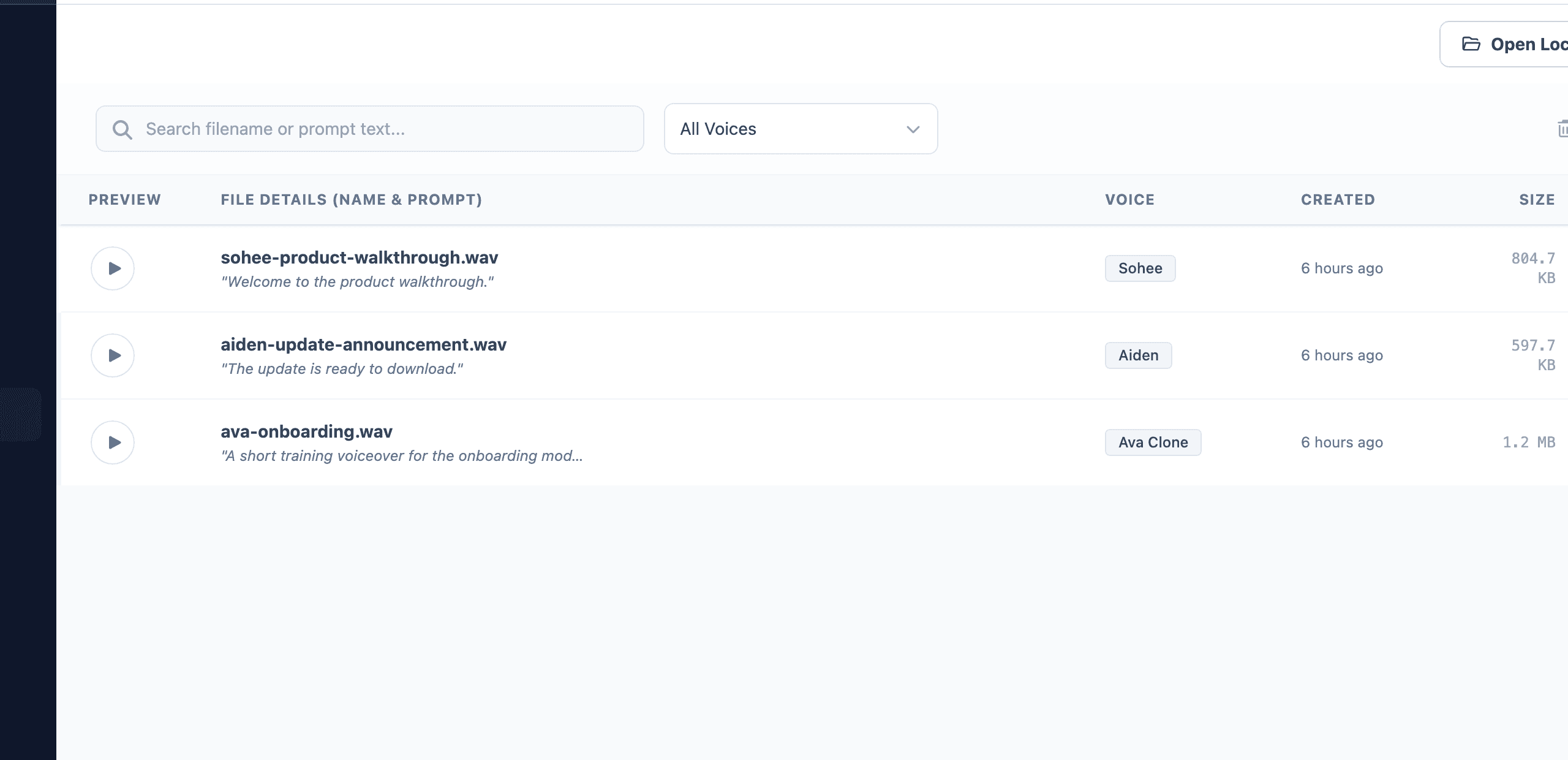
- Open Audio Library from the sidebar.
- Search by filename or prompt text.
- Use the voice filter when you only want files generated with a specific voice.
- Preview a file before exporting or deleting it.
Open or export files
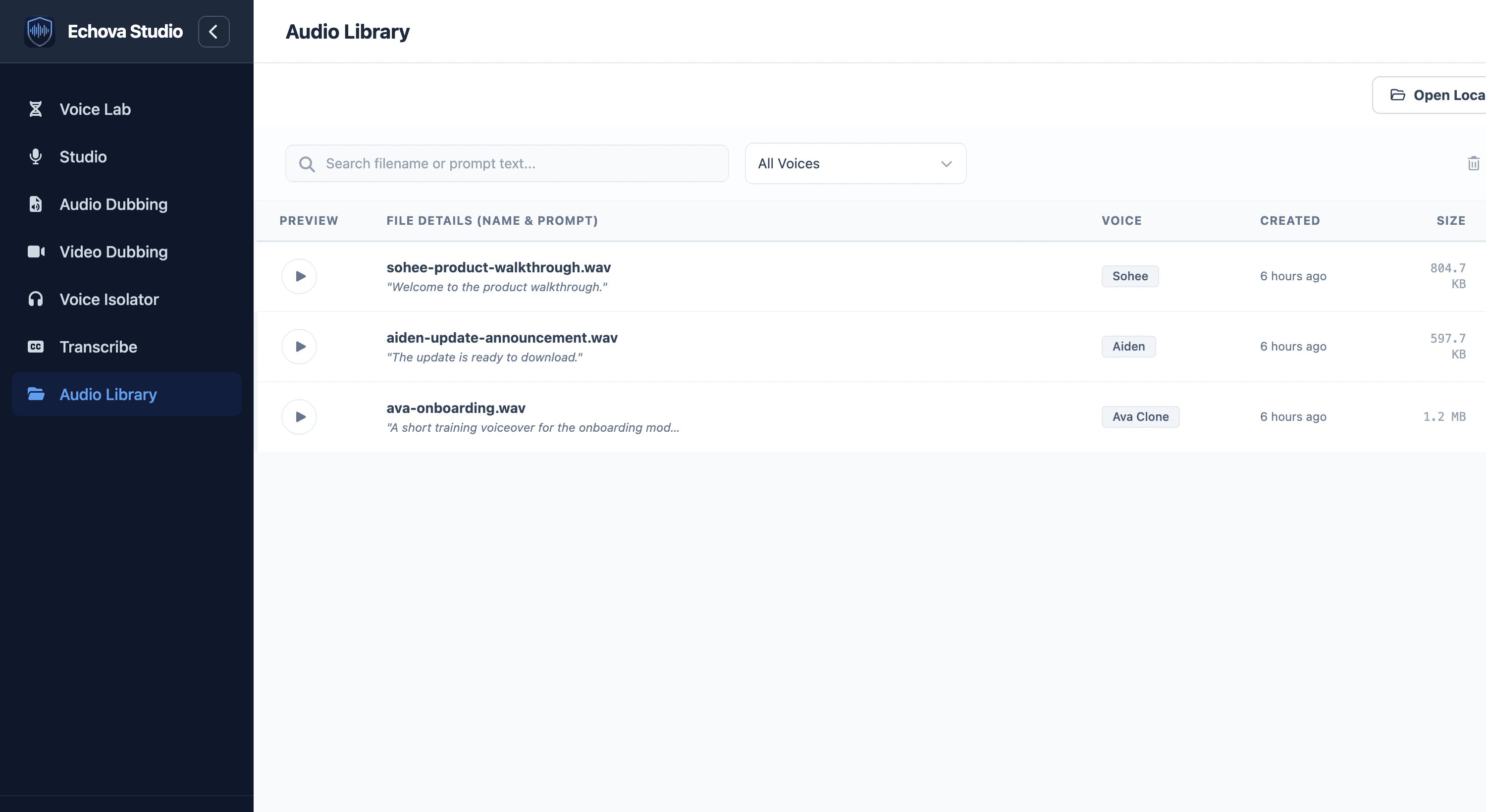
Use Open Local Folder when you want to view the storage folder on disk.
Use the file row actions when you need to export, delete, or work with one item from the library.
Preview before exporting when you generated several takes of the same script. This avoids sending the wrong version to a video editor or client folder.
Use the prompt text and voice filter together when comparing takes. If several files sound similar, preview the newest version first and keep the one that matches the final script and voice settings.
Compare multiple takes
When you generate several versions of the same line, compare them before exporting:
- Check that the script matches the final wording.
- Confirm the voice, emotion, and model are the intended ones.
- Listen for pronunciation, pace, silence, clipping, and volume.
- Keep the take that needs the least editing later.
If you are testing models, use the same script and voice for each render. That makes the comparison fair and helps you hear whether the model, not the script, changed the result.
Clear files
Use Clear All only when you want to remove the generated files shown in the current library view. This is a destructive cleanup action, so search and filter first if you only want to remove a smaller set of files.
Before clearing old results, export anything that belongs in a project archive. The library helps you manage generated work, but it should not be the only place a final delivery file lives.
If a file is missing
If a row points to a file that no longer exists on disk, regenerate the audio or remove the stale library entry.
If you cannot find a recent output, clear the search box and voice filter first. Filters can make the library look empty even when files still exist.
If a generated file is important, export it before clearing old results. The library is a working area for generated audio, not a replacement for your project archive.
If playback fails, open the local folder and confirm the file still exists. If the file was moved or deleted outside Echova, the library entry may remain even though the media is gone.