Voice Lab
Choose, preview, save, clone, and edit voices from the Voice Lab.
Voice Lab is where you prepare the speaker before generating audio in Studio. Use it to browse built-in voices, manage saved voices, create custom voices, clone a voice with permission, and add emotion styles to voices you already use.
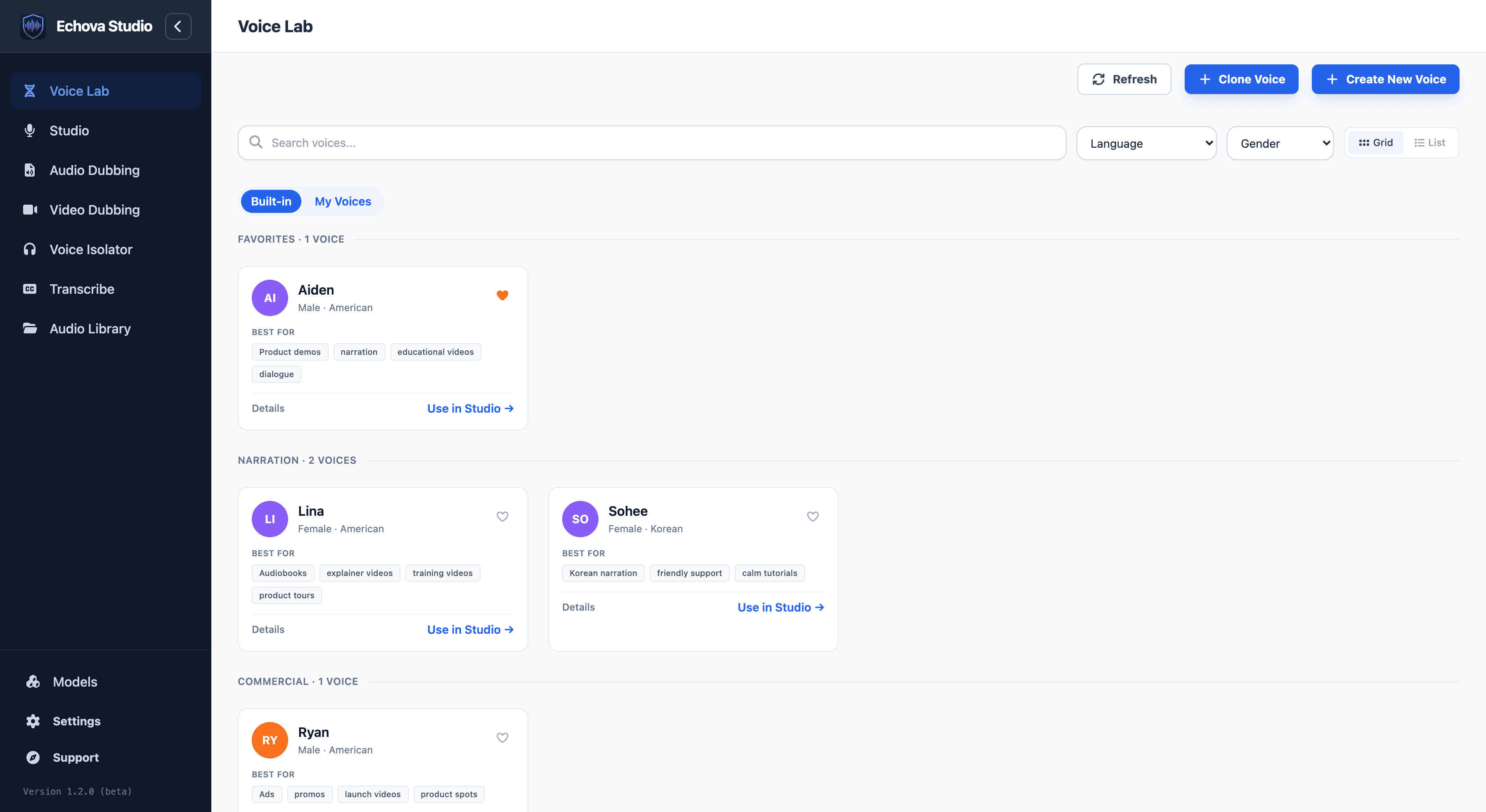
Choose where to start
Start with Built-in when you want a ready-made speaker. This is useful for quick projects, testing a script, or finding a clean narrator without creating a custom voice.
Open My Voices when you want to reuse a saved, cloned, or designed voice. This is the best place to start for recurring projects because it keeps your approved voices together.
Use Clone Voice when you have permission to recreate a real speaker. Use Create New Voice when you want Echova to design a synthetic voice from a written description.
Find and compare voices

- Open Voice Lab from the left sidebar.
- Use Built-in to browse Echova voices, or My Voices to browse voices you created or saved.
- Use search when you know the voice name, or filter by Language and Gender when you want to narrow the list.
- Press the play control on a voice card to hear a preview.
- Open Details when you need to compare pitch, energy, tone, accent, best-use tags, sample text, and available styles.
Judge voices with a short script before committing to a long project. Listen for clear pronunciation, the right energy level, a natural pace, and whether the voice fits the audience. A voice that sounds impressive in one sentence may not stay comfortable for a long tutorial or audiobook-style read.
Save or send to Studio
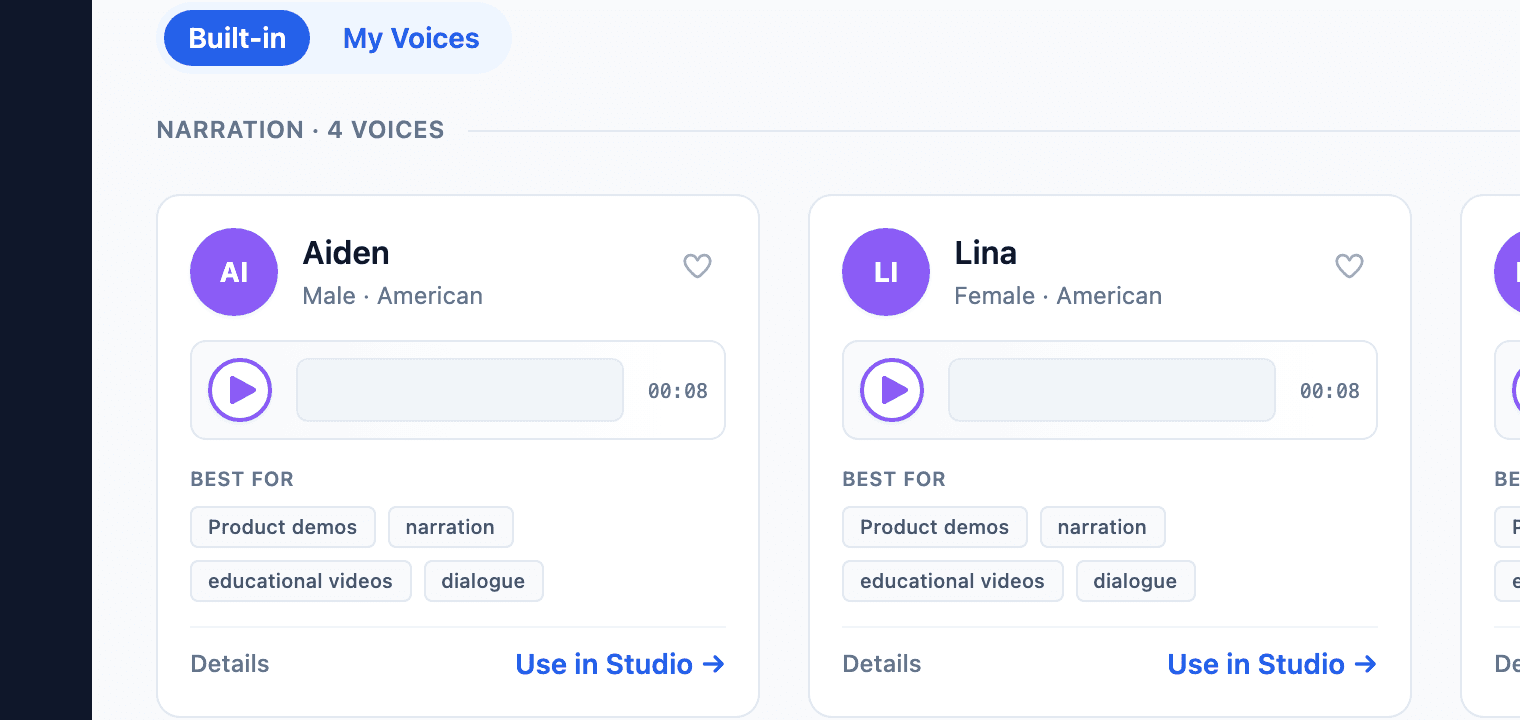
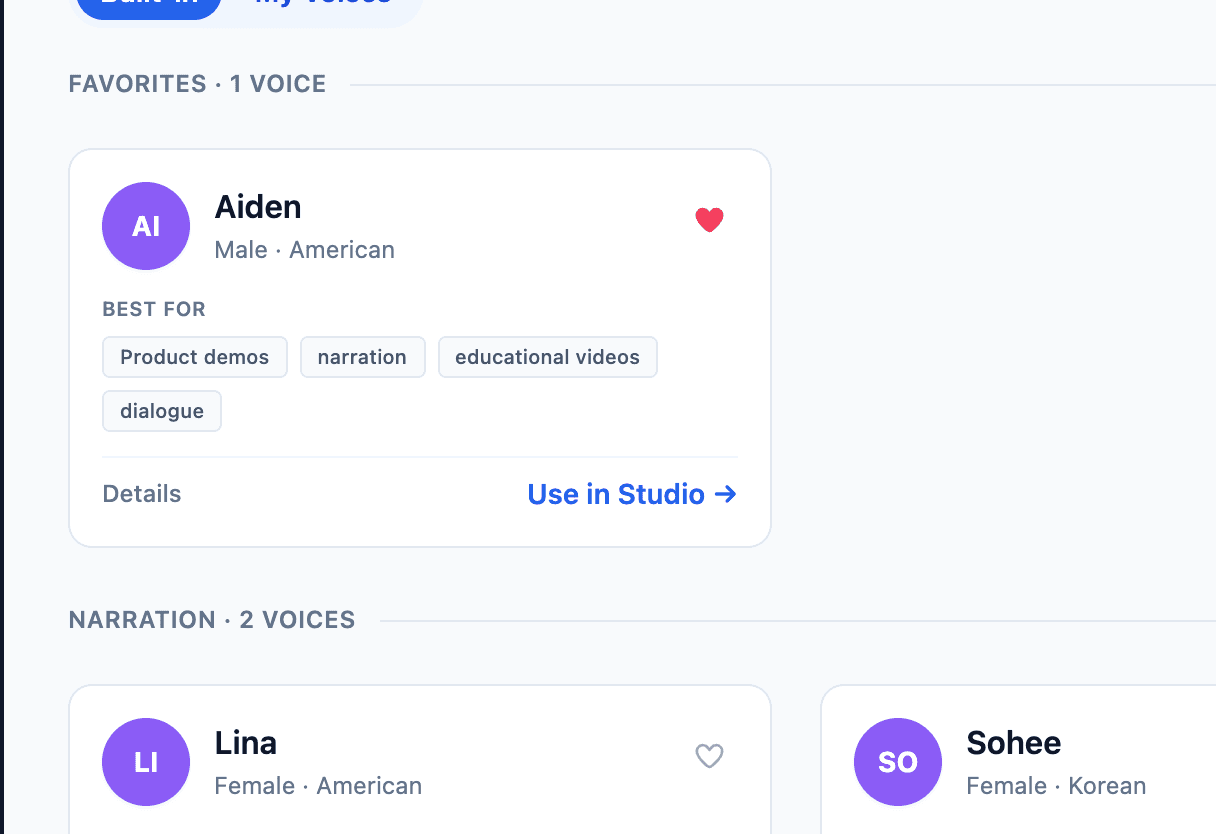
Use Add to My Voices from the details view when a built-in voice should stay in your personal library.
Use Use in Studio when you are ready to generate audio. Echova opens Studio with that voice already selected, so you can move directly into writing or pasting a script.
If the voice supports emotion styles, check the saved style labels before leaving Voice Lab. Choose the neutral version for general narration and use a style when the script needs a specific delivery, such as friendly, excited, calm, or serious.
Common use cases
For a product demo, filter for the language you need, preview several clear voices, then use Details to compare tone and energy before sending the best match to Studio.
For a recurring brand voice, add the voice to My Voices first. This keeps it easy to find later without searching the built-in library again.
For a custom narrator, start with Clone Voice when you already have a reference recording, or Create an AI Voice when you want to design a new voice from a description.
For expressive reads, add styles through Add Emotions to a Voice, then select the emotion in Studio before generating.
Before you generate
Create one short Studio test before producing a full script. If the voice has the wrong tone, fix the voice choice or emotion style first. If the voice is right but the rhythm is wrong, keep the voice and adjust Studio settings such as speed, model, and advanced model controls.