Clone Voice
Create a custom voice from a short reference recording.
Clone Voice creates a voice in My Voices from a clear reference recording. Use this flow when you have permission to use the speaker's voice and want Echova to generate speech in that speaker's style.
Cloning works best when the reference audio sounds like the way you want the final voice to speak. If the source is noisy, distant, tired, or overprocessed, the clone can inherit those qualities.
Before you start

Use a clean .wav or .mp3 recording with one speaker. The app asks for a 6 to 20 second section where the speaker is clear and talking continuously.
Avoid background music, overlapping speakers, long silence, heavy room noise, and samples where the speaker changes tone dramatically.
Use a sample that sounds like the voice you want to generate later. If the clone will be used for calm narration, use a calm reference. If it will be used for energetic ads, use a more energetic reference or add that style later as an emotion.
Choose a sample that has:
- One speaker only.
- A normal speaking pace.
- No background music, echo, or room noise.
- The same language or accent style you plan to use later.
- Natural emotion, unless the clone is meant to sound energetic or dramatic.
Do not clone someone else's voice unless you have the right to do so. For team projects, keep the permission and source recording easy to find later.
Create the clone
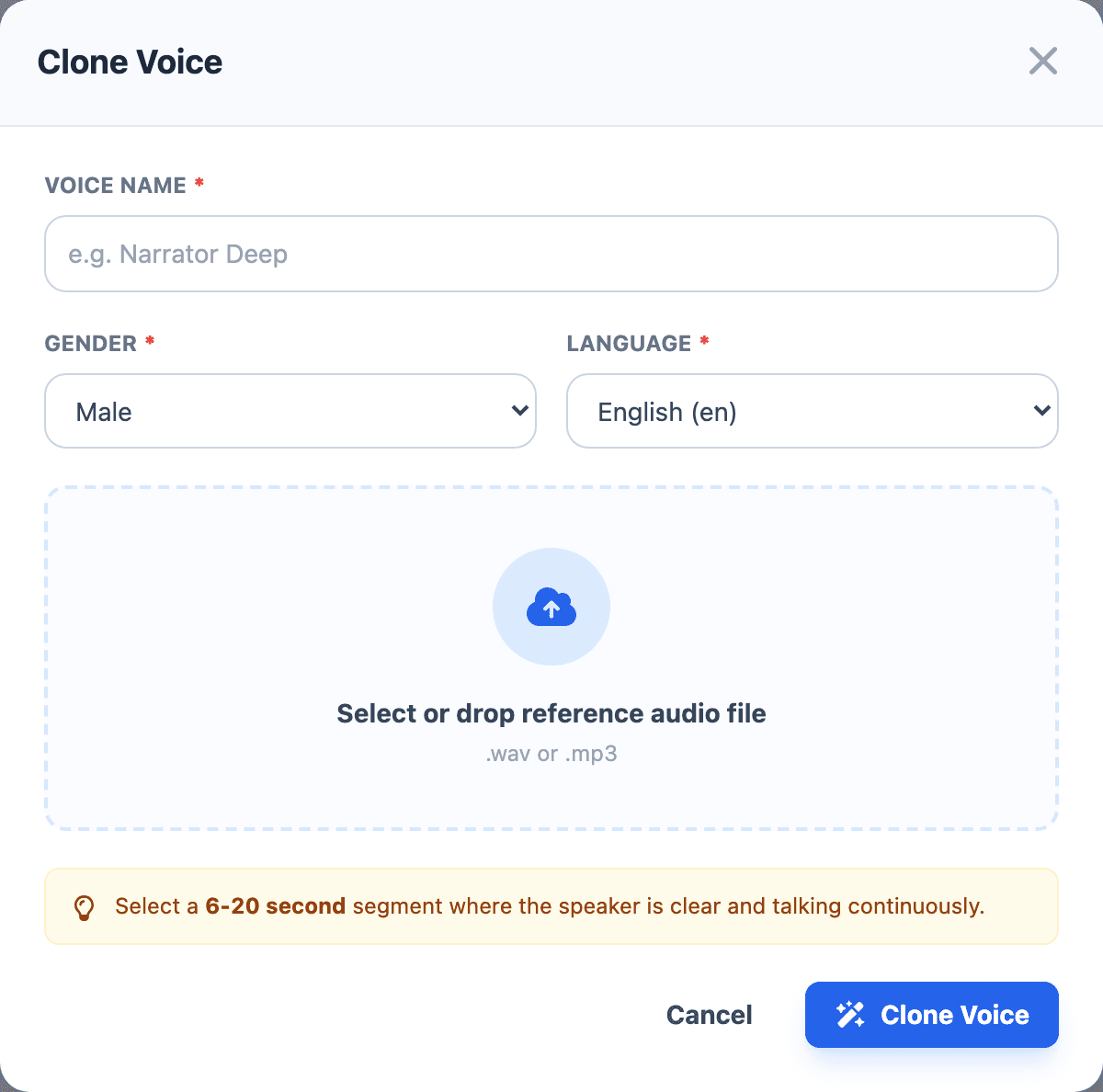
- Open Voice Lab.
- Select Clone Voice.
- Enter a clear Voice Name. Use a name you will recognize later in My Voices and Studio.
- Choose the speaker Gender.
- Choose the voice Language.
- Drop a reference audio file into the upload area, or use the file picker.
- Select Clone Voice.
- When the clone is ready, open My Voices and preview the new voice.
- Select Use in Studio to generate audio with the cloned voice.
Use names that describe the role or project, such as Ava Training Narrator or Client Demo Voice. Good names make the voice easier to find later in Studio and the Audio Library.
Test the clone
After the clone is created, generate two or three short Studio samples. Test a neutral sentence first, then a sentence that contains the tone you expect to use in the real project.
Listen for:
- Speaker similarity.
- Clear words and stable pronunciation.
- Natural pauses.
- Consistent volume.
- No copied background noise from the reference file.
If the clone sounds close but flat, add emotion styles later. If the clone does not sound like the speaker, replace the reference sample and create a new clone.
If the clone sounds wrong
Use a cleaner reference sample first. The best sample is short, dry, and focused on one speaker speaking naturally.
If the voice identity is close but the delivery is not right, generate again in Studio with a script that better matches the intended speaking style.
If the base clone needs to be replaced, open My Voices, choose Edit, and use Replace Audio. Replacing audio retrains the base voice, so use it only when the original sample is not good enough.
For minor style changes, do not replace the base voice. Add an emotion sample instead, then choose that emotion in Studio.
Use the clone in a project
Use the cloned voice like any other saved voice. Select it in Studio for text-to-speech, or use it during dubbing when the new audio should sound like that speaker.
For important projects, keep one approved sample in the Audio Library. That gives you a reference when you later change the model, speed, language, or emotion settings.